

H.265 offers better compression and higher quality at lower bitrates, but it needs powerful hardware and compatible decoders to play smoothly. If your computer or device lacks hardware acceleration or updated codecs, H.265 clips may stutter, fail, or won’t play at all. In contrast, H.264 is widely supported and easier to decode on most devices. For a deeper look into why your clips might not work and how to fix them, explore further.
Key Takeaways
- H.265 requires hardware with compatible decoding support; without it, videos may fail to play or stutter.
- Outdated or missing drivers and codecs can prevent H.265 clips from playing smoothly on your computer.
- Higher decoding demands of H.265 may overwhelm older CPUs or GPUs lacking hardware acceleration.
- Limited software or browser support for H.265 can cause playback failures compared to universally supported H.264.
- Large file sizes and high bitrates in H.265 videos can strain system resources, leading to playback issues.
Differences in Compression Techniques Between H.264 and H.265
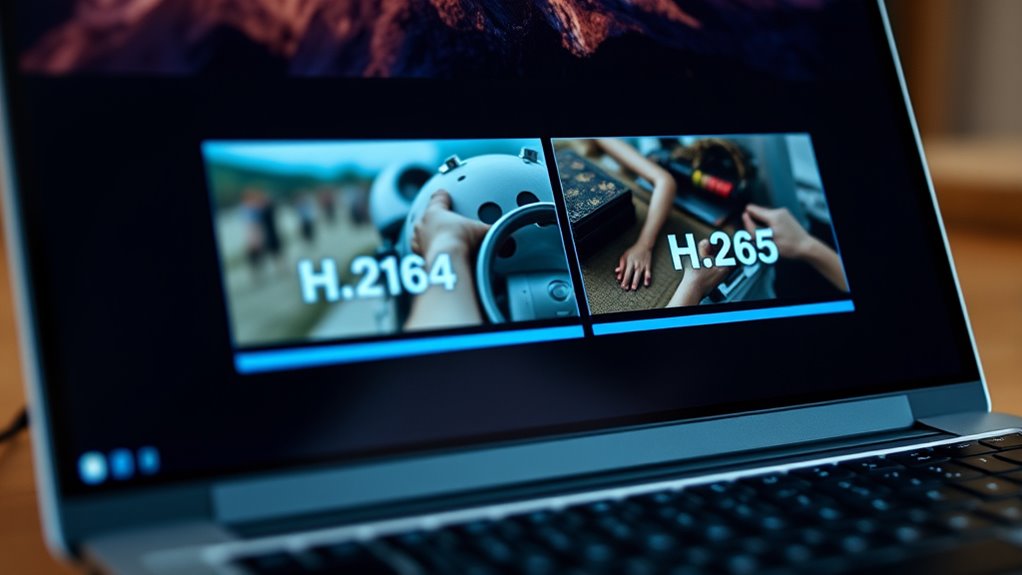
H.265 employs more advanced compression techniques than H.264, resulting in markedly higher efficiency. It achieves up to 50% better compression for the same video quality, meaning you need about half the bitrate. H.265’s use of larger block structures, called Coding Tree Units (CTUs) up to 64×64 pixels, allows for more flexible partitioning, reducing redundancy and improving compression. Its multi-type tree coding adapts block sizes dynamically, optimizing each frame’s details. Additionally, H.265 features more precise motion vector prediction—quarter-pixel accuracy—and over three times more intraframe prediction modes. These enhancements improve motion tracking and reduce artifacts, especially in high-resolution videos. This efficiency enables streaming of higher-quality videos over limited bandwidth connections. Furthermore, the improved entropy coding in H.265 enhances overall compression performance by better analyzing symbol probabilities. Incorporating advanced algorithms further boosts the codec’s ability to optimize data compression and decompression processes.
Impact of Video Quality and Resolution on Playback Compatibility
Higher video quality and resolution can greatly impact playback compatibility, especially with H.265. As you increase resolution, your device needs more processing power to handle the data smoothly. If your hardware isn’t up to the task, you’ll likely experience stuttering or failures during playback. Advanced codecs like H.265 require more computational resources, which can be a limiting factor on older or less powerful devices. Additionally, hardware acceleration capabilities play a crucial role in smooth playback, and not all devices support this feature for newer codecs.
Resolution Challenges With HEVC
While advanced video codecs like HEVC promise better quality at lower bitrates, playback can be complicated by hardware limitations that restrict resolution support. Many GPUs and mobile SoCs limit HEVC decoding to certain resolutions, often 4K or lower, causing higher-res files to fall back to CPU decoding or fail altogether. External displays and OS support may also restrict 4K playback unless compatible hardware and software are present. Hardware decoders may reject videos with extremely high pixel counts or unusual aspect ratios. Firmware updates can improve resolution support, but without them, playback issues persist. Hardware-accelerated HEVC is often limited to specific profile-resolution combinations, forcing software decoding and resulting in stutter or failure at higher resolutions. Additionally, software compatibility can further influence whether certain clips will play smoothly or at all.
Video Quality and Codec
Video quality and resolution directly influence playback compatibility by determining the processing demands placed on your hardware. H.264 uses fixed 16×16 macroblocks, which can lead to block distortions and artifacts, especially in high-motion scenes. Its limited adaptability makes it less effective at preserving detail compared to H.265, which employs flexible Coding Tree Units (CTUs) up to 64×64 pixels, allowing for sharper images and fewer artifacts. H.265’s superior compression efficiency means you get higher quality at lower bitrates, especially for 4K and UHD content. However, this increased quality demands more processing power during decoding. If your hardware struggles, playback can suffer or become choppy, particularly with high-resolution videos. Choosing the right codec depends on balancing desired video quality with your device’s decoding capabilities. Advanced decoding techniques in H.265 further enhance efficiency but require even more powerful hardware to decode smoothly.
Hardware Requirements for Decoding H.265 Files
Decoding H.265 videos requires more processing power and compatible hardware than earlier formats. Your device’s CPU or GPU must support hardware acceleration to handle the higher complexity efficiently. Compatibility challenges can arise if your hardware isn’t up to date, which may affect playback smoothness and quality. GPU support is essential for hardware-accelerated decoding of H.265 videos, and support varies depending on the GPU manufacturer and model. Additionally, hardware acceleration capabilities are continually evolving, so keeping your drivers and firmware updated can improve decoding performance. Up-to-date hardware can significantly enhance playback efficiency and reduce lag or stuttering. Regularly checking for software updates can further optimize decoding efficiency and prevent playback problems. Ensuring your system meets the hardware requirements for H.265 playback can save you time and frustration.
Processing Power Needs
Processing H.265 files demands considerably more computational power than H.264 due to its complex prediction modes and larger coding units. This increased complexity means your CPU needs to perform markedly more calculations per frame—often 2–4 times more—especially during software decoding. A modern multi-core (quad-core or better) CPU at moderate speeds can handle 1080p H.265 in real time, but older dual-core or single-threaded CPUs struggle with high-bitrate or 10-bit content. For 4K H.265, software decoding often exceeds typical CPU capacity, making hardware acceleration essential. High-frame-rate and high-bit-depth streams further increase CPU load, making software decoding impractical on many systems. Hardware support for HEVC decoding varies, so to ensure smooth playback, hardware offloading via GPU or integrated decoding support is usually necessary, especially for 4K and professional workflows. Additionally, processing demands can significantly differ depending on the efficiency of the decoding algorithms used, highlighting the importance of hardware acceleration for demanding video files. As video compression techniques advance, the need for compatible hardware becomes increasingly critical to maintain playback performance.
Hardware Compatibility Challenges
Handling H.265 files efficiently depends heavily on your hardware setup, as not all devices support the necessary decoding capabilities out of the box. Intel processors from the 6th generation onward feature hardware-accelerated HEVC decoding, with newer models like 7th Gen Kaby Lake offering full support. For 10-bit and higher chroma subsampling, 10th Gen Intel CPUs and newer are required. NVIDIA’s GTX 10-Series supports basic H.265 decoding, while RTX 20/30/40/50-Series GPUs provide broader compatibility with 10-bit and 4:2:2 formats. AMD Radeon 5000/6000/7000 series and Ryzen integrated graphics also enable hardware decoding for various bit depths. Apple Silicon chips, such as M1 Pro and M1 Max, support hardware-accelerated H.265, provided your macOS is up to date. Recent hardware updates verify your OS and drivers align with your hardware capabilities for smooth playback. Additionally, software compatibility plays a crucial role, so ensure your media players are updated to support hardware acceleration features. Incorporating hardware acceleration can significantly reduce CPU load and improve playback performance, especially for high-resolution clips. Ensuring your system has proper hardware configuration is key to seamless playback of H.265 videos. Proper hardware compatibility is essential for optimal performance and avoiding playback issues. Checking your system specifications can help identify potential bottlenecks and prevent playback problems.
Common Device and Browser Support for H.264 and H.265
When it comes to device and browser support, H.264 stands out as the more universally compatible video codec. It’s supported by all major browsers on laptops and mobile devices, including Chrome, Firefox, Edge, and Safari. This widespread adoption makes it the preferred choice for streaming services like YouTube and Facebook Live. In contrast, H.265 faces limited support due to complex licensing and hardware requirements. Key points include:
- H.264 works seamlessly across most devices and browsers, including legacy hardware.
- H.265 support is limited and often requires powerful hardware or modern GPUs.
- Compatibility issues with H.265 persist in WebRTC applications and some mobile devices.
- H.264’s widespread support is a result of its long-standing presence and open licensing model, making it easier for developers to implement across platforms.
- Additionally, hardware compatibility plays a significant role in determining whether H.265 can be effectively used on a device.
Why H.265 Files May Fail to Play on Your Computer
While H.264 enjoys broad compatibility across devices and browsers, support for H.265 (HEVC) isn’t as widespread, which can lead to playback issues on your computer. Many operating systems and media players lack built-in HEVC decoders, requiring you to install additional codecs or extensions. If these are missing or incompatible, you’ll see errors like “format not supported” or silent failures. Hardware limitations also play a role; older CPUs may struggle with HEVC’s complex decoding, causing stutter or dropped frames. Additionally, your GPU or integrated graphics might not support certain HEVC profiles, especially 10-bit or high-tier options, leading to failed hardware acceleration. Outdated drivers or unsupported encoding parameters can further complicate playback, making some HEVC files impossible to play smoothly or at all. Insufficient hardware support can often be the main reason why some HEVC clips won’t play properly on your computer. Moreover, hardware acceleration is crucial for smooth playback of high-resolution HEVC files, and its absence can exacerbate compatibility issues. Ensuring your system has proper software updates and compatible hardware components can significantly improve HEVC playback performance. Understanding the compatibility requirements for HEVC can help you troubleshoot and determine if hardware upgrades or software updates are needed to improve playback.
The Role of Codec Support in Media Player Compatibility
Codec support plays a crucial role in determining whether your media player can successfully play a video file. If the necessary codecs aren’t available or compatible, playback will fail. The first factor is the container format, which limits the codecs it can carry—mismatched pairs cause issues. Second, system-level support depends on OS codecs and licensing; some systems lack native HEVC decoders, forcing third-party solutions. Third, hardware acceleration influences playback smoothness; older GPUs or CPUs may not support HEVC hardware decoding, leading to stuttering or failure. To improve compatibility, consider these points: The choice of codec and container can also impact compatibility, especially when dealing with different devices or software environments. Verify your OS and hardware support the required codecs and profiles. Use compatible containers or remux files to match supported codecs. Additionally, codec licensing restrictions can sometimes pose challenges for playback on certain platforms.
How Bitrate and File Size Affect Playback Performance
When your video has too low a bitrate, you might experience buffering or stuttering during playback. Larger file sizes can strain your device’s hardware, causing slowdowns or crashes. Understanding how bitrate and file size impact performance helps you choose the right codec for smooth viewing. Modern codecs like H.265/HEVC are designed to provide higher compression efficiency, which can help reduce file sizes without sacrificing quality. Additionally, video compression techniques play a crucial role in optimizing playback performance on various devices. Being aware of hardware limitations can further assist in selecting appropriate video settings for the best experience. Proper filtration and pump protection are essential in maintaining the quality of the equipment involved in producing high-quality videos, ensuring that your devices operate smoothly during playback. Considering video encoding settings can also significantly influence how well your videos perform during playback. Moreover, choosing the appropriate lease terms can influence your overall costs and compatibility with your device.
Lower Bitrate Causes Playback Issues
Lower bitrates can directly cause playback issues by increasing decoding difficulty and introducing visible artifacts. When the bitrate drops, codecs must use coarser quantization, leading to blockiness, banding, and detail loss, especially in fast-moving scenes. These artifacts can trigger players to switch modes or increase CPU usage, causing stuttering. Additionally, low bitrates often result in complex decoding tasks, such as frequent prediction or longer segments, which strain hardware. The following points highlight key issues:
- Coarser quantization creates visible compression artifacts that impair viewing quality.
- Reduced detail in high-motion scenes increases decoding errors, stressing your device.
- Excessive complexity during decoding can cause CPU spikes and playback interruptions.
- Codec efficiency impacts how well video quality is maintained at low bitrates, influencing overall playback stability.
- When bitrates are too low, adaptive streaming may struggle to deliver consistent quality, leading to interruptions or quality drops.
- Understanding these video compression principles can help you optimize your video settings for smoother playback.
- Additionally, bitrate management tools can assist in selecting appropriate settings to prevent playback issues and ensure a better viewing experience.
Using too low a bitrate compromises smooth, stable playback, especially on constrained systems.
Larger Files Strain Hardware
Larger video files demand more from your hardware’s decoding, storage, and memory systems, often leading to playback issues. Higher bitrates and bigger files overwhelm CPU and GPU decoders, especially on older devices lacking hardware acceleration for H.265. When storage or network speeds can’t keep up, playback stalls, buffers, or drops frames. Larger files also require more RAM for buffering and decoding, which can cause stuttering if your system is limited. Fragmented drives and inefficient containers worsen seek times, creating pauses during playback.
| Hardware Demands | Potential Issues |
|---|---|
| CPU/GPU decoding | Frame drops, stuttering, dropped frames |
| Storage I/O | Buffering, stalls, delayed reads |
| RAM | Insufficient buffering, quality reduction |
Troubleshooting Playback Issues With H.265 Content

Troubleshooting playback issues with H.265 content often involves checking for support gaps across your hardware, software, and codecs. First, confirm your OS and media players support HEVC. For example, Windows needs the HEVC extension, and Linux may require extra packages like GStreamer. Second, verify hardware acceleration is enabled and compatible with your device’s GPU or VPU, especially for high-res or high-bit-rate videos. Unsupported hardware or missing drivers cause stuttering or artifacts. Third, examine container compatibility and audio/subtitle streams. Incompatible formats or non-standard metadata can prevent playback or trigger unnecessary transcoding.
- Confirm OS and player support, including necessary codecs.
- Ensure hardware acceleration is active and supported.
- Check container format and embedded stream compatibility.
The Effect of Advanced Motion Compensation in H.265
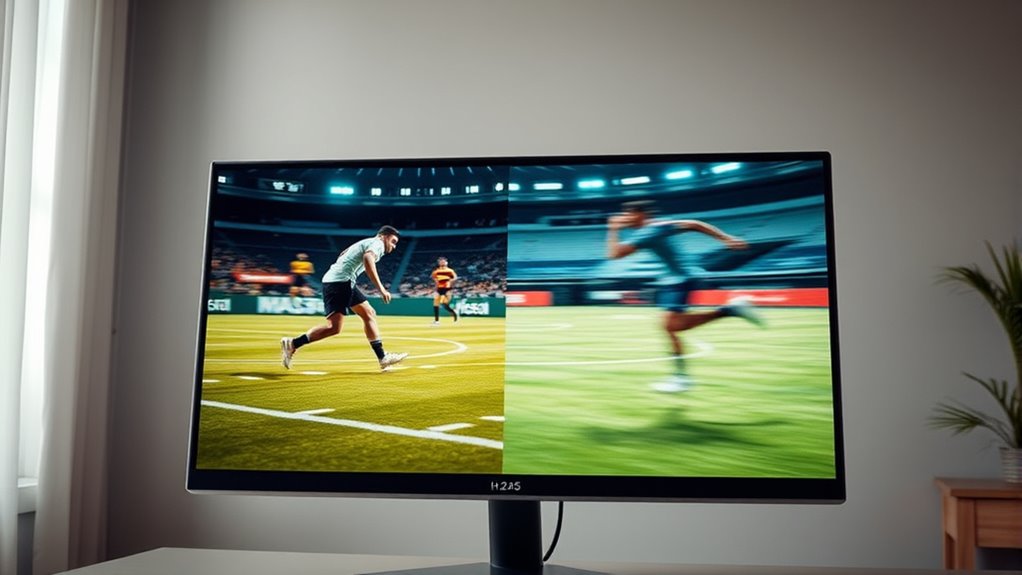
Advanced motion compensation techniques in H.265 markedly enhance video encoding efficiency by enabling more precise and flexible motion modeling. You benefit from advanced algorithms like AMVP, which use multiple candidate vectors for better prediction accuracy, reducing residual data. Support for fractional-pixel precision allows sub-pixel interpolation, resulting in tighter motion compensation and fewer artifacts during fast motion. Motion-region merging shares motion parameters across neighboring blocks, decreasing side information and boosting efficiency in coherent motion scenes. Variable block partitioning inside CTUs offers fine-grained motion modeling where needed, improving residual reduction. Enhanced filtering preserves edges and textures, minimizing ringing and blurring. Larger CTUs cover smooth regions efficiently, lowering overhead, while flexible partitioning handles detailed motion. These improvements collectively make H.265 more efficient but increase decoder complexity and hardware demands.
Future Trends in Video Codec Adoption and Compatibility

As the video streaming industry evolves, the adoption of new codecs is shaping a complex landscape driven by market share, hardware support, and economic factors. Currently, H.264 dominates with 70–79% usage, but HEVC (H.265) is growing, especially for 4K and HDR content. AV1 shows strong intent-to-adopt, yet real-world deployment lags due to hardware and browser support. Meanwhile, VVC (H.266) and LCEVC have limited adoption but show potential. The adoption of new codecs often depends on the availability of hardware acceleration, which is still catching up for some emerging formats. Key trends include: 1. Hardware acceleration remains critical—support for AV1 and newer codecs is increasing but still limited. 2. Cost and licensing issues influence codec choice, with royalty-free options gaining ground. 3. AI and cloud-based solutions are accelerating adoption by reducing encoding complexity and enabling real-time transcoding.
Frequently Asked Questions
Can I Convert H.265 Videos to H.264 for Compatibility?
Yes, you can convert H.265 videos to H.264 for better compatibility. Use free tools like HandBrake or VLC, or online converters like AnyConv. Just load your H.265 files, select the H.264 profile, adjust settings like bit rate and resolution, then start the conversion. This process guarantees your videos play smoothly on devices that don’t support HEVC, giving you a broader playback compatibility.
What Software Can Play H.265 Videos on My Computer?
Think of your computer as a gatekeeper—certain codecs are the keys. To play H.265 videos, you need the right key. VLC Media Player is your best ally; it plays HEVC files immediately and supports multiple platforms. MPC-HC is lightweight and efficient, perfect for Windows. PotPlayer offers advanced controls for high-bitrate videos. Make sure your system has the latest graphics drivers or HEVC extensions to enable seamless playback.
Are There Online Tools to Decompress H.265 Files?
Yes, online tools can help decompress H.265 files by converting them to more widely supported formats like MP4 or H.264. You can upload your H.265 video to services like AnyConv, Restream, or Video-converter.com, which process the file server-side and provide a downloadable, compatible version. Keep in mind, upload times depend on your internet speed, and files are typically deleted after processing for security.
How Do I Update My Media Player for H.265 Support?
To update your media player for H.265 support, first download the HEVC Video Extensions from the Microsoft Store, avoiding the standard app due to compatibility issues. Restart your media player after installation, then verify the HEVC decoder is active by checking the DLL file and PowerShell status. Alternatively, switch to media players like VLC or MPC-BE, which natively support H.265 without additional updates.
Does Hardware Acceleration Improve H.265 Playback?
Yes, hardware acceleration definitely improves H.265 playback. It offloads decoding tasks to your GPU or dedicated hardware, making playback smoother and more responsive. Without it, your CPU struggles, causing stutters or dropped frames, especially with high-resolution videos. Plus, it reduces power consumption and heat, keeping your device cooler and extending battery life. So, enabling hardware acceleration is key to enjoying seamless, high-quality H.265 videos without taxing your system.
Conclusion
As you explore new videos, you might notice some won’t play smoothly or at all. Sometimes, it’s just a matter of your device’s hardware or software catching up with the latest codecs. With more devices adopting H.265 and future updates on the horizon, staying aware of compatibility quirks can save you time. After all, as technology advances, what’s unsupported today might become standard tomorrow—so keep your players updated and enjoy seamless playback.