
Loop recording continuously captures footage and overwrites the oldest clips when your storage fills up. If you haven’t protected important files, they can be deleted automatically as the camera needs space for new footage. Files marked as “important” or “protected” are less likely to be overwritten, but without proper setup, even essential clips can go missing. To learn how to secure your footage and avoid accidental deletion, keep exploring these key details.
Key Takeaways
- Loop recording automatically overwrites the oldest footage when storage is full, which can delete important clips if not protected.
- Files marked as “important” may still be overwritten if they aren’t manually protected or locked beforehand.
- Storage capacity limits trigger automatic deletion, prioritizing newer or less critical files over protected ones.
- Firmware updates and device settings influence which clips are overwritten, affecting important footage preservation.
- To prevent deletion, users should enable file protection, back up critical clips, and adjust loop recording settings accordingly.
Understanding Loop Recording and Its Purpose

Loop recording is a feature that continuously records video footage by overwriting the oldest files once the storage is full. Its purpose is to guarantee your camera always has recent footage without manually deleting files. To maximize its effectiveness, you need to contemplate video resolution; higher resolutions provide clearer images but consume more storage, meaning the files fill up faster. Camera placement also plays a vital role—position your camera where it captures the most relevant area, minimizing unnecessary recordings and optimizing storage use. Proper camera placement and selecting the right video resolution help balance recording quality and storage management, making loop recording a reliable feature for your security needs. Additionally, understanding how loop recording interacts with storage management can help you customize your settings for optimal performance. Adjusting video compression settings can further enhance storage efficiency without significantly sacrificing image quality. Moreover, selecting the appropriate video resolution ensures a balance between detail and storage capacity, which is crucial for effective loop recording. Implementing automatic overwriting settings can prevent manual intervention and keep your system running smoothly, especially when combined with storage capacity considerations.
How Cameras Decide Which Clips to Overwrite

When your camera reaches its storage limit, it decides which clips to overwrite based on a set of priority rules. First, it considers file naming conventions, often favoring recent recordings or specific filenames designated by the camera’s system. Second, it may preserve footage marked as “protected” or flagged as important. Third, camera firmware updates can influence overwrite patterns, improving how clips are managed. Fourth, the camera typically deletes the oldest files first, ensuring continuous recording. This process can evoke frustration if essential footage gets erased unexpectedly. Understanding these rules helps you anticipate what might be overwritten and how updates or file naming conventions impact your recordings. Keeping firmware current and organizing clips with clear naming can help protect critical footage from accidental deletion. Additionally, storage management settings and alert notifications can help you monitor and prevent the loss of vital recordings. Being aware of priority rules can aid in better managing your footage and avoiding the accidental loss of important clips. Furthermore, properly configuring your camera’s file organization can streamline the overwrite process and safeguard key recordings. Implementing automatic backups can also ensure that important footage is preserved outside the camera’s storage. Regularly reviewing recording settings can help you tailor the overwrite process to prioritize essential footage.
The Role of Storage Capacity in Clip Deletion

Storage capacity plays a pivotal role in determining which clips get deleted as your camera’s memory fills up. Once your storage reaches its limits, the camera begins overwriting older footage based on overwrite priority. This means that clips with higher importance, like flagged or protected files, are less likely to be deleted first. Instead, the camera targets videos that are deemed less critical, making room for new recordings. If your storage is nearly full, the camera’s behavior depends heavily on how these priorities are set, guaranteeing essential footage stays intact longer. Understanding your device’s storage limits helps you anticipate which clips may be deleted first. Proper management of overwrite priority and available storage ensures your most important recordings are preserved as long as possible. Additionally, being aware of storage management techniques can help optimize footage retention and prevent accidental deletions. Regularly monitoring your available space and adjusting recording settings can further improve clip preservation. Knowing how storage capacity impacts clip deletion allows users to better plan their recordings and avoid losing critical footage. Implementing storage best practices can significantly extend the lifespan of your recorded clips and improve overall footage security. Being familiar with how overwrite algorithms function can also help in customizing your camera’s behavior to prioritize important recordings.
Why “Important” Files Might Still Be Removed
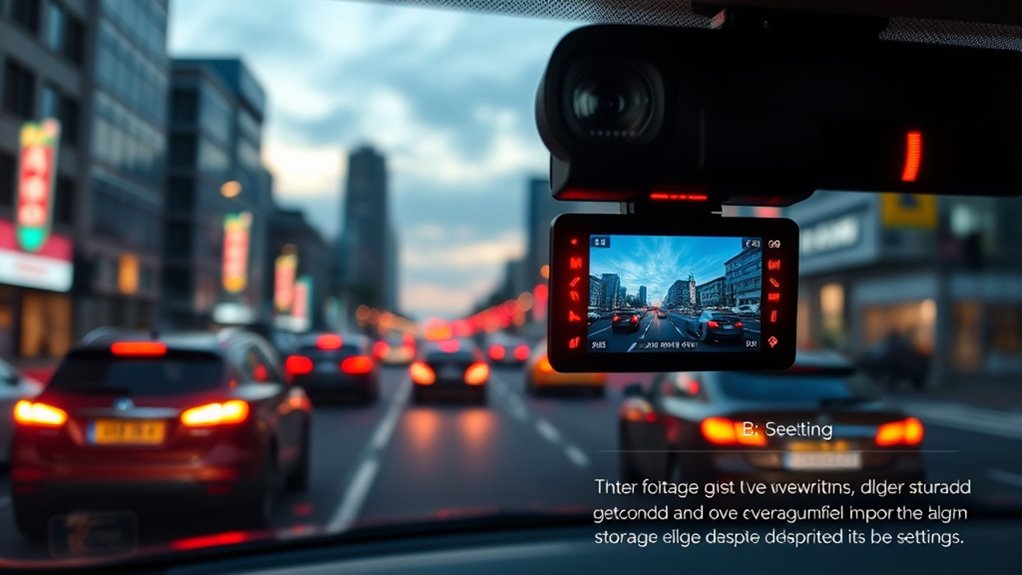
Have you ever wondered why files marked as important sometimes get deleted despite their significance? It’s frustrating, but here’s what might be happening:
- Your camera may automatically overwrite files during loop recording, even if you’ve flagged them as important.
- Accidentally deleting footage without realizing it, which complicates file recovery later.
- Insufficient footage backup, leaving crucial clips vulnerable to deletion when space runs out.
- Firmware glitches or errors that cause the camera to mismanage stored files, risking important footage loss.
To protect vital clips, always ensure proper footage backup and consider using reliable storage devices. Remember, even important files aren’t immune to deletion, so regular backups are your best defense.
Indicators That Your Camera Is Loop Recording
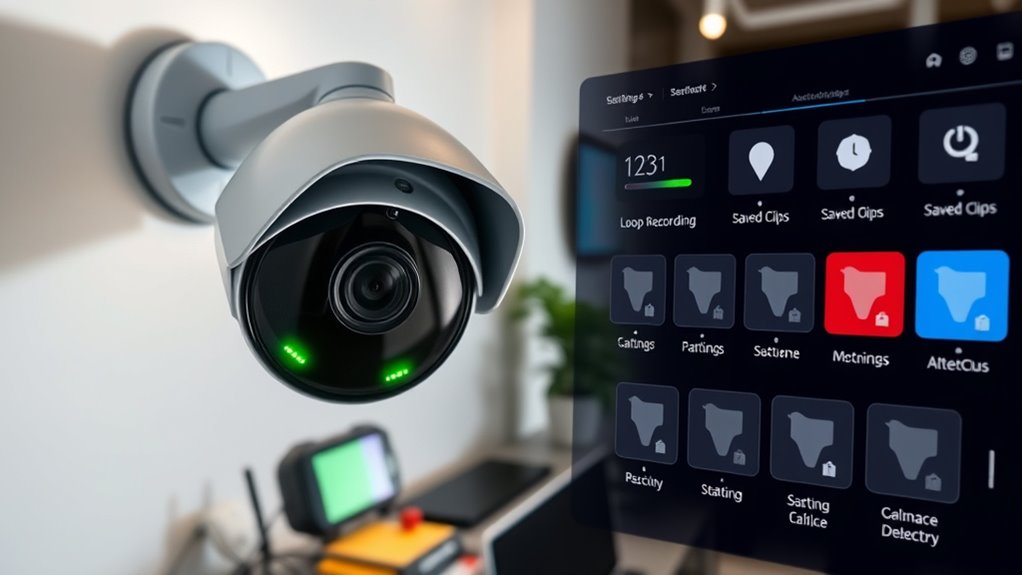
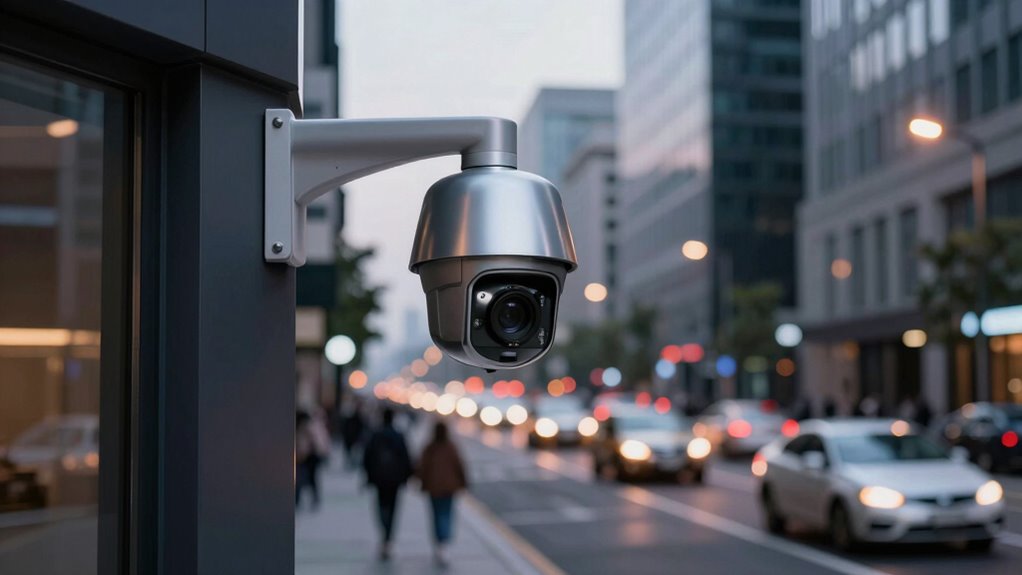
You can tell your camera is loop recording when a specific icon appears on the screen, signaling that the feature is active. Additionally, some devices display a clear indicator or message confirming that loop recording is in progress. Keep an eye out for these signs to guarantee your footage is continuously being recorded without interruption. Vetted technologies in security cameras help ensure reliable loop recording and user awareness. For more detailed information, consider exploring technological integration in security cameras, which enhances recording capabilities and user awareness. To optimize your setup, choosing glycolic acid products designed for clear and consistent recording can also help maintain the camera’s performance and reliability. Recognizing Free Floating elements in your setup can aid in troubleshooting and ensuring your camera’s environment supports optimal recording performance. Being aware of storage management features can further prevent accidental deletion of important clips.
Indicators of Loop Recording
When your dashcam or security camera is actively recording in a loop, there are often subtle indicators that confirm this process is happening. First, you might notice a consistent file format, like MP4, which shows the camera is overwriting old clips with new data. Second, the recording resolution remains steady, indicating ongoing loop activity. Third, the camera may save files with sequential names or timestamps, reflecting continuous overwriting. Fourth, some devices have subtle firmware notifications or lights indicating loop recording is enabled. These clues assure you that your footage is being automatically overwritten to make room for new recordings. Additionally, market reputation and customer reviews often highlight the reliability of loop recording features across different brands. Recognizing these signals helps you understand that your footage is being automatically overwritten to make room for new recordings, especially when considering security system features and their impact on data management. Knowing how video storage management works can also help you troubleshoot why important clips might disappear unexpectedly. Moreover, understanding loop duration settings can inform you about how much footage is retained before overwriting occurs. For example, some cameras offer customizable recording intervals, allowing you to set specific durations before the oldest footage is overwritten.
Loop Recording Icon Display
Many dashcams and security cameras display specific icons or indicators on their screens to show that loop recording is active. These icons help you understand that your device is continuously overwriting old clips to manage storage effectively. When loop recording is enabled, you might see a circular arrow or a recording symbol, indicating active storage management. This icon often signals clip prioritization, where important footage—such as emergency events—may be protected from deletion. Recognizing these indicators assures you’re aware of how your camera handles storage and clip retention. If you notice the loop recording icon, it’s a sign your device is balancing space by overwriting older recordings. This visual cue helps you stay informed about ongoing storage management and clip prioritization, ensuring you don’t miss critical footage. Additionally, understanding the power management features of your camera can help optimize battery life and recording performance. Being aware of storage capacity and how it’s managed ensures you maximize your footage retention without surprises, especially when your device is set to automatic overwriting.
Managing and Adjusting Loop Recording Settings

Managing and adjusting loop recording settings allows you to customize how your camera handles continuous footage, ensuring it meets your specific needs. By fine-tuning these options, you can prioritize video quality or extend battery life with smarter power management. Here’s what you should consider:
- Set the loop duration to balance storage space and footage retention.
- Choose your preferred video quality for clearer recordings or longer recordings.
- Adjust power management settings to conserve energy during extended use.
- Enable or disable automatic deletion to safeguard important clips from being overwritten.
These adjustments give you control over your recording experience, helping you capture exactly what matters while maintaining ideal device performance. Proper management prevents missed moments and keeps your camera working efficiently.
Tips to Protect Critical Footage From Being Deleted

To prevent critical footage from being overwritten, it’s essential to take proactive steps within your camera’s settings. Enable file protection on important clips to prevent accidental deletion during loop recording cycles. Many cameras allow you to lock or mark specific files, ensuring they won’t be overwritten automatically. Additionally, regularly perform a clip backup by transferring vital footage to an external device or cloud storage. This ensures you have a secure copy outside the camera’s memory card, especially for crucial events. Keep in mind that adjusting your camera’s settings to prioritize file protection and maintaining a routine clip backup can safeguard your most important footage from being erased, giving you peace of mind that your critical moments remain intact.
Alternatives to Loop Recording for Secure Footage Storage

If you’re concerned about losing important footage due to overwriting, exploring alternatives to loop recording can provide more reliable security. Consider these options:
- Use cloud storage to automatically upload footage, ensuring clips are safe even if your device deletes them.
- Perform manual backups regularly on external drives or computers to keep copies of critical footage.
- Set up dedicated security servers to store footage securely and access it remotely.
- Invest in cameras with non-overwriting storage options that retain important clips until you delete them.
These methods give you control and peace of mind, preventing essential footage from being overwritten or lost forever. Combining cloud storage and manual backups offers a layered, dependable approach to securing your footage.
Frequently Asked Questions
Can Loop Recording Be Disabled on My Camera?
Yes, you can disable loop recording on your camera. To do this, access your camera’s settings and look for options related to storage management or clip prioritization. Disabling loop recording prevents your camera from overwriting old clips, so you’ll need to manage storage manually. Keep in mind, this might fill up your storage faster, but it guarantees important clips aren’t automatically deleted, giving you more control over your recordings.
How Does the Camera Prioritize Which Clips to Delete?
Ironically, your camera’s clip prioritization makes sure the most “important” clips get deleted first—so much for saving memories. It uses storage management algorithms that favor recent or less critical footage, often discarding older or flagged clips. This way, your camera efficiently manages space, but it might seem like it’s purposely deleting your key moments. Understanding this process helps you adjust settings or manually save clips before they’re lost.
What Happens if the Camera Runs Out of Storage During Recording?
If your camera runs out of storage during recording, it automatically overwrites the oldest clips thanks to storage management. This process guarantees continuous recording without interruption. Clip prioritization plays a role here, as the camera may delete less important footage first. To prevent losing vital clips, you can manually save or back up important recordings before they get overwritten, making sure your key moments stay protected.
Are There Settings to Prevent Important Clips From Being Overwritten?
Yes, you can set your camera to prevent important clips from overwriting during video storage. Many cameras offer clip management settings, allowing you to mark or lock critical footage so it isn’t deleted when storage runs out. Check your device’s menu for options like “lock clips” or “prevent overwrite.” This way, you guarantee your essential recordings stay safe, even as the camera continues to record new footage.
Is Cloud Storage a Better Alternative to Loop Recording?
Cloud storage is generally a better alternative to loop recording because it offers reliable video backup. With cloud storage, your important clips stay safe and accessible even if your camera overwrites local files. You don’t have to worry about losing essential footage, and you can easily review recordings from anywhere. While loop recording is convenient, cloud storage provides added security and peace of mind for your important footage.
Conclusion
Understanding how loop recording works helps you avoid surprises when important clips get overwritten. Remember, your camera prioritizes storage management, much like a medieval scribe juggling parchment. To keep vital footage safe, adjust your settings or consider alternative storage methods. Stay vigilant, so your footage remains as protected as a knight’s treasure chest. With some tweaks, you’ll be the master of your footage, not a helpless victim of the ever-churning, digital scroll of recording.