If your dash cam keeps rebooting, start by checking your power connection for damage or loose fittings. Try using a different power source to see if the issue persists. Inspect and format your SD card for errors, and update the firmware to the latest version. Also, reset the device to factory settings to clear any glitches. If problems continue, hardware issues or faulty cables might be the cause—exploring these steps further can help you find a solution.
Key Takeaways
- Check and secure power cables, adapters, and connections for damage or looseness.
- Update the dash cam firmware and format the SD card to prevent software conflicts.
- Inspect hardware components like cables and connectors for wear or physical damage.
- Test the device with an alternative power source to identify power supply issues.
- Reset the dash cam to factory settings and ensure stable mounting to eliminate software or hardware glitches.
Check the Power Source and Connections
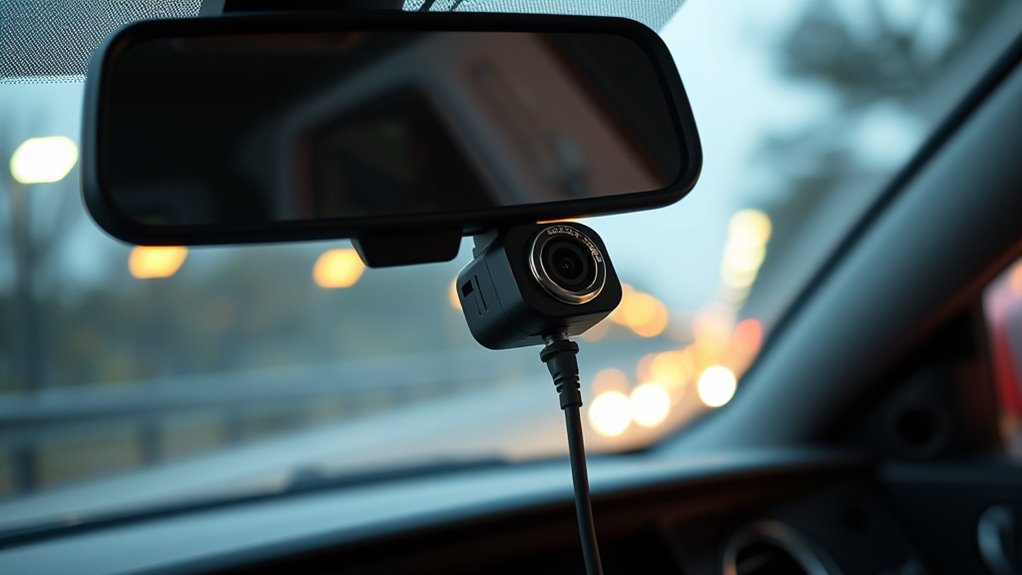
To troubleshoot a reboot issue, start by inspecting the power source and connections. Check the battery health, ensuring it’s holding a proper charge and isn’t degraded. A weak or failing battery can cause power fluctuations, leading to constant reboots. Next, examine the wiring integrity—look for loose, frayed, or damaged cables that could disrupt a steady power supply. Make sure all connectors are securely plugged in and that there’s no corrosion or corrosion buildup on terminals. Poor wiring or a bad connection can intermittently cut power, causing your dash cam to reboot unexpectedly. Address any identified issues by replacing damaged cables or securing loose connections. Ensuring a reliable power source and solid wiring is essential for stable operation. Additionally, confirming proper wiring basics can help prevent future power issues. Regularly inspecting and maintaining the wiring and connections can further improve overall power stability and prevent reboots. For added reliability, consider using power management accessories designed for dash cams to regulate voltage and protect against surges. Incorporating voltage regulation devices can also help maintain consistent power levels and avoid sudden reboots. Implementing these practices can enhance device longevity and ensure consistent performance.
Inspect the SD Card for Errors or Corruption

Inspect the SD card for errors or corruption. SD card corruption can cause instability, leading to repeated reboots. Start by removing the SD card and using a computer to run a diagnostic tool or check for errors. If the card shows signs of corruption, data recovery software can help salvage your footage before replacing the card. Keep in mind, a faulty SD card might be the culprit behind reboot issues, so replacing it often resolves the problem. Additionally, regularly updating your dash cam’s firmware can improve overall stability and prevent software conflicts. Ensuring your SD card meets recommended storage specifications can also enhance reliability. It’s also beneficial to verify that the SD card is compatible with your dash cam model to avoid compatibility issues. Properly formatted and maintained SD cards play a crucial role in device stability and can significantly reduce troubleshooting time. Regularly checking the health of your SD card is an essential part of maintaining dash cam performance. Here’s a quick overview to guide your inspection:
| Step | Action | Result/Tip |
|---|---|---|
| Remove SD card | Power off dash cam, eject card | Check for physical damage |
| Run error check | Use computer tools | Detect corruption or bad sectors |
| Backup data | Save important recordings | Prepare for SD card replacement |
| Replace if needed | Install a new SD card | Prevent future reboot issues |
Verify the Firmware and Software Updates
First, check your dash cam’s current firmware version to see if it’s up to date. Then, install any available software updates from the manufacturer’s website or app. Finally, confirm that the update finished successfully before testing the device again. Regularly monitor your device’s security settings to ensure privacy and prevent unauthorized access. Additionally, keeping your device’s firmware and software current can help prevent issues like reboots and improve overall stability. Ensuring your dash cam’s hardware compatibility can also prevent potential rebooting problems. Staying informed about device maintenance practices can further enhance your dash cam’s performance and longevity, especially since consistent updates support the device’s performance cookies for an optimal user experience.
Check Firmware Version
Checking the firmware version on your dash cam is a essential step in troubleshooting reboot issues, as outdated software can cause stability problems. To do this, navigate to your device’s settings menu and locate the firmware version displayed on the screen. Ensuring your firmware version is current helps maintain software compatibility, which is critical for smooth operation. If your firmware is outdated, it can lead to conflicts or bugs that cause repeated reboots. Recording the current firmware version allows you to compare it with the latest release from the manufacturer’s website or user manual. Updating your firmware to the latest version often resolves bugs and improves stability, reducing the chances of reboot loops caused by compatibility issues. Always verify that your firmware is up-to-date before proceeding. Additionally, choosing energy-efficient hardware can enhance overall device stability and longevity.
Install Latest Software Update
Ensuring your dash cam runs the latest software update is essential for resolving reboot issues. Updating firmware reduces user error and improves software compatibility, preventing glitches that cause reboots. To verify your device’s current version, consult the user manual or check the settings menu. If an update is available, download it from the manufacturer’s official website or app. Follow the instructions carefully to avoid user error during installation. Remember, incompatible updates can worsen problems, so always ensure compatibility before proceeding. Verifying device compatibility helps prevent installation issues and ensures a smooth update process. Additionally, staying informed about software update best practices can help maintain your device’s stability and performance. Being aware of common update mistakes can also contribute to a successful update experience.
Confirm Update Completion
After updating your dash cam’s firmware, it’s crucial to verify that the installation was successful. Ensure the new software is compatible with your device model to prevent reboots. Check that you have the necessary user permissions to view and confirm the update status. Confirm that the firmware version matches the latest release listed on the manufacturer’s website. Proper verification helps avoid issues caused by incomplete or incompatible updates. Additionally, reviewing appliance maintenance plans can help ensure your device remains in optimal condition following updates. Incorporating regular device checks can further enhance your dash cam’s performance and longevity, especially considering the importance of software compatibility in preventing malfunctions. Staying informed about at-home tech updates can help you troubleshoot issues proactively and maintain your device’s reliability. Regularly monitoring system logs can also provide early indicators of potential issues before they escalate.
Examine the Power Cable and Adapter for Damage
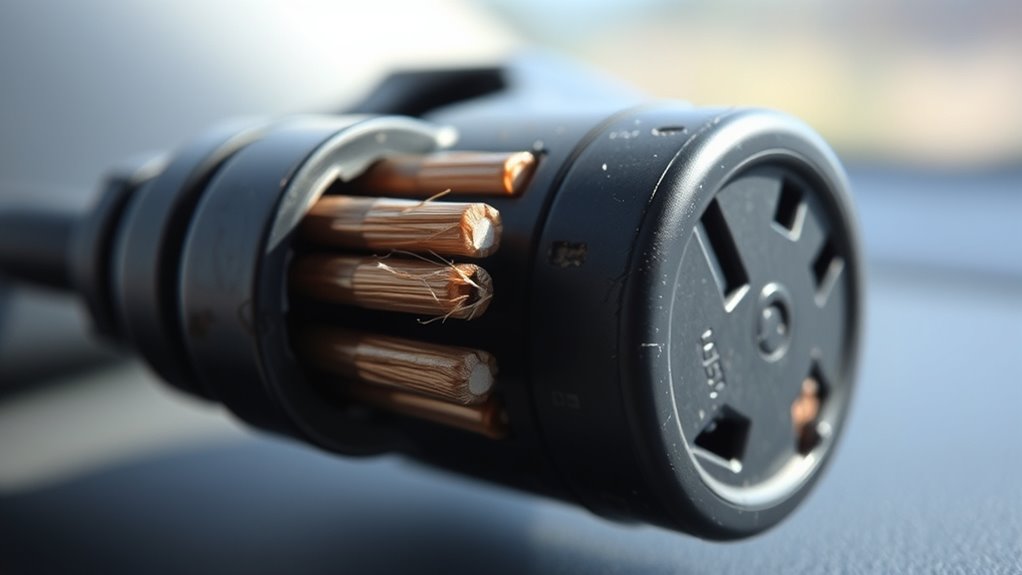
Start by inspecting your power cable and adapter for any visible damage, like frays or cracks. Then, test the setup with a different power source to see if the reboot issue persists. These simple checks can often identify if the power supply is causing your dash cam problems. Additionally, ensure that the electrical connections are secure and free from corrosion to prevent intermittent power issues. Regularly inspecting and maintaining your power setup can help prevent recurring reboot problems. For continued reliability, monitor the power cable for signs of wear and replace it if necessary. Incorporating proper outdoor electrical safety measures can further safeguard your equipment from environmental damage.
Inspect for Visible Damage
Begin by closely inspecting the power cable and adapter for any visible damage, such as frayed wires, cuts, or bent connectors. Damage here can cause reboot issues and may void your warranty coverage if not addressed. Check the cable’s entire length and the connection points for wear or exposed wiring. Refer to your user manual for specific guidance on inspecting components. If you notice any damage, replace the cable or adapter immediately. Remember, some issues might be covered under warranty, so keep documentation handy. Damage that isn’t obvious might still affect performance, so a thorough visual check is essential. Addressing visible problems early can save you time and prevent further damage to your dash cam.
Test With Different Power Source
If your dash cam keeps rebooting, testing it with a different power source can help identify whether the issue lies with the cable or adapter. Start by connecting your dash cam to an alternate power source, such as a different cigarette lighter socket or USB port. This helps verify if the connection stability improves and if the rebooting continues. Check the power cable and adapter for any visible damage, fraying, or loose connections, as these can disrupt power flow. Using a different power source can reveal if the original one was faulty or inconsistent. Ensuring a steady power supply is essential for your dash cam’s proper operation. If the problem persists even with a different power source, further troubleshooting may be necessary.
Reset the Dash Cam to Factory Settings
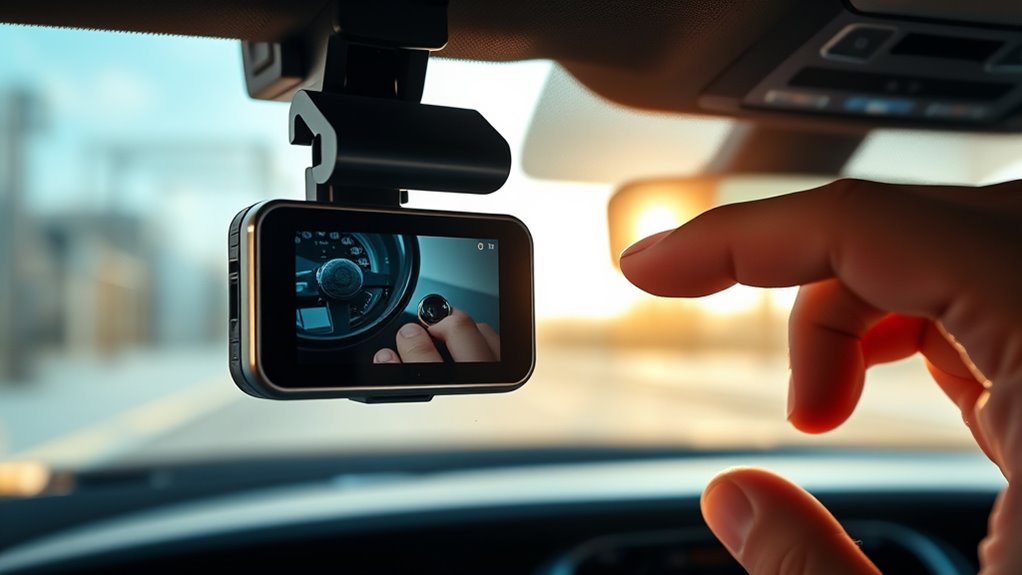
Resetting your dash cam to factory settings can often resolve persistent reboot issues by restoring the device to its original configuration. This step can fix problems related to video quality or glitches caused by incorrect settings. After resetting, check that your dash cam’s mounting position is secure, as a loose mount can cause power interruptions. When you perform a reset, it clears any custom configurations that might be causing instability. Keep in mind that restoring factory settings may also reset video resolution and other preferences. To reset, typically find the reset button or menu option in your dash cam’s settings. Doing this simple step can often stabilize your device and prevent further reboots.
Reset your dash cam to factory settings to fix reboot issues and restore optimal performance.
- Restore default settings for video quality and preferences
- Ensure mounting position is secure and stable
- Clear any corrupted settings causing reboots
- Reconfigure video resolution after reset
Consider Hardware Malfunctions or Replacement Needs
Even after resetting your dash cam, persistent reboot issues may point to underlying hardware problems. Hardware failure can cause your device to continually restart, indicating that internal components might be damaged or malfunctioning. If you suspect hardware issues, check for signs like overheating, loose connections, or physical damage. In some cases, repair isn’t feasible, and you’ll need to contemplate replacement options. Many dash cams have replaceable parts such as memory cards or power cables, but if the main unit itself is faulty, replacing the entire device might be necessary. Before buying a new dash cam, verify if the problem stems from hardware failure or a simple component malfunction. Addressing hardware problems promptly can save you time and ensure your dash cam functions reliably.
Frequently Asked Questions
Can a Faulty GPS Signal Cause Reboot Issues?
Yes, a faulty GPS signal can cause reboot issues in your dash cam. GPS interference or poor signal stability can overload the device’s system, leading it to reboot unexpectedly. When the dash cam struggles to maintain a stable GPS connection, it may trigger reboot cycles as it tries to re-establish the signal. To fix this, guarantee your device has a clear view of the sky and avoid areas with high GPS interference.
Does Temperature Affect Dash Cam Reboot Stability?
The heat can definitely throw a wrench in your dash cam’s stability, making it reboot unexpectedly. You should check your camera placement—avoid direct sunlight and extreme temperatures—and make certain your firmware updates are current. These updates often optimize performance and fix bugs. When temperatures soar, your dash cam might struggle, so consider installing it in a shaded spot or using a cooler environment to keep everything running smoothly.
Could External Interference Trigger Reboot Loops?
Yes, external interference can trigger reboot loops in your dash cam. Electrical interference from nearby devices or signals can disrupt the camera’s power supply or data signals, causing it to reboot repeatedly. Signal disruption may interfere with the internal circuitry, leading to instability. To minimize this, keep your dash cam away from strong electromagnetic sources, ensure secure connections, and consider using shielded cables to diminish the impact of external interference.
Is There a Way to Recover Data After Repeated Reboots?
Like a knight in shining armor, you can try data recovery tools to retrieve footage after repeated reboots. First, stop using the dash cam to prevent overwriting files. Then, connect it to a computer and run specialized data recovery software. If possible, perform a firmware update to fix any glitches. This approach maximizes your chances of recovering essential data while ensuring your device operates smoothly again.
How Long Should a Dash Cam’s Power Cable Last?
A dash cam’s power cable typically lasts around 3 to 5 years, depending on wiring durability and usage conditions. If you notice power interruptions or frequent reboots, it might be time to examine or replace the cable. Proper installation and avoiding unnecessary bending or exposure to harsh elements can extend the power cable lifespan. Regular checks ensure reliable operation and help prevent unexpected shutdowns on the road.
Conclusion
If your dash cam keeps rebooting, don’t give up hope—you’re not alone in facing this tech nightmare. By carefully checking power sources, SD cards, firmware, and hardware, you can often fix the issue yourself. Think of it as taming a wild beast; with patience and the right steps, you’ll restore your dash cam’s reliability. Soon, your device will be as steady as a lighthouse, guiding you safely on every journey.