
A soft reset restarts your device quickly to fix minor issues like app crashes, lag, or overheating, without deleting your data. A factory reset is a more drastic step that erases everything to resolve serious software problems, malware, or hardware issues. Knowing which reset to choose depends on how severe your problem is. Keep going to discover detailed tips on when and how to use each option effectively.

Get business pricing on garage and car supplies
- Business-only prices and quantity discounts
- Tax-exempt purchasing
- Multiple users, one account, clear invoices
Key Takeaways
- Soft resets fix minor issues like app crashes, lag, overheating, and network problems, without deleting personal data.
- Factory resets address severe problems such as software corruption, malware infections, persistent bugs, and hardware malfunctions.
- Use a soft reset for troubleshooting quick glitches; opt for a factory reset when major software or system issues persist.
- Factory resets completely erase all data and settings, while soft resets do not affect personal files or apps.
- Both resets can resolve specific problems, but choosing the correct one depends on problem severity and desired outcome.
Understanding the Basic Differences Between Resets
To understand the basic differences between soft reset and factory reset, it’s important to recognize what each one does to your device. A soft reset simply restarts or power-cycles your device without deleting any data or settings. It targets volatile memory like RAM and running processes, fixing temporary glitches and performance issues. In contrast, a factory reset restores your device to its original factory state by erasing all user data, apps, and customizations. It affects persistent storage and system configuration, often accessed through system settings or recovery mode. While a soft reset leaves your files and privacy intact, a factory reset removes personal files and settings, though some residual data may remain if backups or cloud syncs exist. These resets serve different purposes for troubleshooting and device management. A factory reset typically requires confirmation and may involve password verification to prevent accidental data loss. Additionally, understanding how each reset impacts device configuration can help you choose the appropriate troubleshooting method, especially considering the potential for residual data to remain after a factory reset. The presence of cloud backups can also influence how much data is recoverable after a reset, which is crucial for data management. Moreover, knowing the limitations of each reset can ensure a more effective resolution to device issues.
When a Soft Reset Is Usually the Right Choice

A soft reset is typically the best option when your device experiences minor glitches, freezes, or sluggish performance. It quickly clears temporary glitches that slow down your device without risking data loss. If an app is freezing or crashing, a soft reset can close the problematic application and free up RAM, restoring smooth operation. This method is ideal for routine maintenance, such as before charging or weekly to keep everything running efficiently. It also helps improve overall stability by clearing running programs from memory. Since it doesn’t erase your files or settings, you can perform it easily and safely as a first troubleshooting step. Usually taking just 1-2 minutes, a soft reset is a simple, effective way to fix common minor issues. A soft reset works by clearing the device’s temporary memory, which helps resolve many common software-related problems, making it an essential part of device maintenance and troubleshooting. Additionally, understanding the difference between resets can help you choose the most appropriate method for your needs. Performing a soft reset can also be beneficial after certain types of software updates to ensure everything functions correctly.
Typical Problems Solved by a Soft Reset
Soft resets effectively resolve many common problems you might encounter with your device. If your device is running slow or lagging, a soft reset clears unnecessary files and background apps, boosting speed and responsiveness. It also fixes minor software glitches or system errors caused by update conflicts or corrupted apps. When your device overheats or drains battery quickly, a restart closes power-hungry background processes and clears cache, reducing overheating and extending battery life. If your device is freezing, crashing, or experiencing unresponsiveness, a soft reset forces a restart, wiping troublesome processes and giving your device a fresh start. Additionally, for intermittent network issues, rebooting resets network connections, refreshes temporary files, and resolves connectivity disruptions. Performing a soft reset can also help to clear minor hardware glitches that may be affecting device performance. Moreover, soft resets are often recommended as the first step before considering more drastic troubleshooting or hardware repairs, making them a valuable tool for quick device maintenance. For example, understanding sound healing science can help in optimizing environments that support relaxation and device recovery. Understanding biography can provide insight into how personal histories influence resilience and recovery. Implementing quality assurance practices can ensure that your device’s software remains reliable and free of bugs, further enhancing overall performance. Recognizing system updates is also crucial, as they can resolve existing bugs and improve device stability. Overall, a soft reset is a quick, effective solution for many everyday device problems.
Scenarios Requiring a Factory Reset for Resolution
While soft resets resolve many common issues, some problems are too deep-seated or complex to fix with just a restart. You’ll need a factory reset when:
- Major software corruption or OS component failure occurs, such as persistent crashes or boot loops that repair tools can’t fix, requiring a complete OS reinstallation.
- Irreversible configuration or firmware changes, like incompatible firmware flashes or corrupted boot settings, which can only be corrected by restoring factory settings.
- Severe performance issues after extensive updates, including persistent slowness, app crashes, or storage errors, that remain unresolved despite multiple soft resets or cache wipes.
- Hardware malfunctions that cannot be addressed through software troubleshooting, necessitating a full reset to restore device functionality.
In these scenarios, a factory reset guarantees a clean slate, removing underlying problems that soft resets can’t handle.
Risks and Data Loss Associated With Each Reset Type
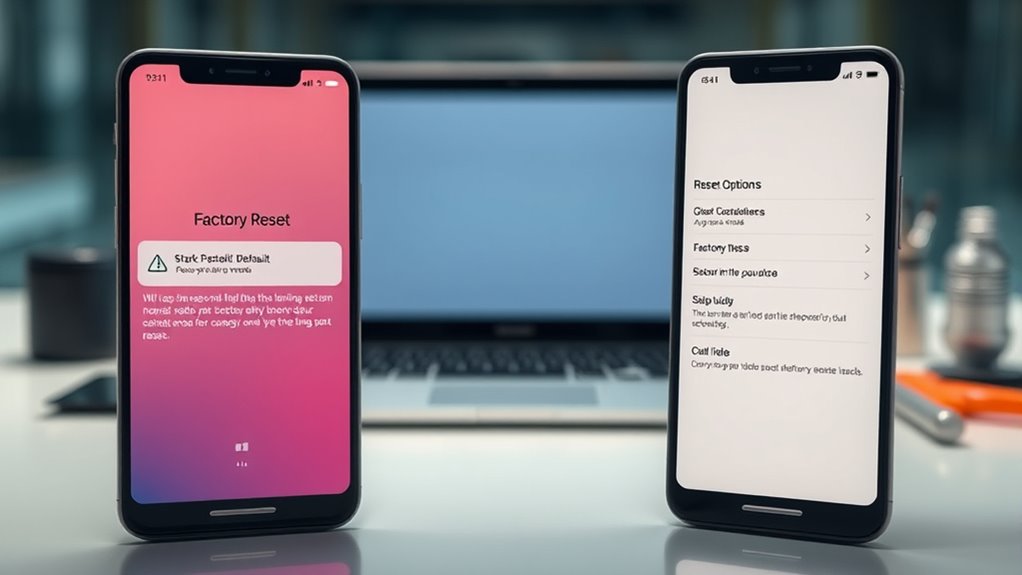
When considering resets, you should understand that factory resets may not fully erase all data, leaving recovery possible with advanced tools. Soft resets, on the other hand, typically don’t delete files but can cause data corruption or incomplete writes if interrupted. Both types pose risks—factory resets might leave malware or sensitive info behind, while soft resets can complicate data integrity and recovery efforts. It’s important to understand the data erasure process involved in each method to properly assess security and recovery options.
Data Erasure Risks
Understanding the data erasure risks associated with resets is crucial because each reset type affects your information differently. With a soft reset, your data stays intact, and recovery is always possible since no overwriting occurs. In contrast, a factory reset mainly removes data pointers, leaving recoverable information behind, especially on Android and Windows devices. For example, without proper overwriting or encryption, remnants of your data can still be retrieved. Data loss prevalence indicates that even seemingly thorough resets can leave traces behind if not properly managed. Additionally, data sanitization techniques are essential for securely erasing sensitive information during a reset process. Properly implementing data sanitization methods ensures that residual data cannot be recovered after a reset. It’s also important to understand that encrypted resets can significantly reduce the risk of data recovery, making them preferable for sensitive information. Properly understanding data recovery methods can help you assess the actual security of each reset type.
Malware Persistence Challenges
Resets alone often fall short in eradicating malware that persists at deeper system levels. Malicious code can embed itself in firmware or boot sectors, surviving both soft and factory resets because these operations target only the OS. Firmware infections are tough to detect and require specialized tools or reflashing, making them a high-impact threat. Additionally, malware in recovery partitions or images can re-infect devices if resets restore from infected backups. OS-level persistence—like registry entries, scheduled tasks, or embedded scripts—often remains after resets, as these are outside the wiped partitions. Here’s a quick overview:
| Persistence Type | Challenge & Risk |
|---|---|
| Firmware/Boot | Survives resets, hard to detect or remove |
| Recovery/Image | Reinfection from infected backups or images |
| OS-Level | Remains through resets, harder to fully clean |
| Network Vectors | Re-infects devices via compromised connections |
Firmware/Boot infections are especially difficult to eliminate because they can embed themselves deep within device hardware, requiring advanced reflashing or hardware replacement to fully eradicate. Moreover, firmware integrity can be compromised without obvious signs, making detection even more complex.
Diagnosing Device Issues Before Resetting

Before jumping into a factory reset, it’s crucial to diagnose the issue thoroughly to avoid unnecessary data loss and troubleshoot effectively. Start by testing common problems with these steps:
- Reproduce the issue in safe mode to see if third-party apps are causing the problem, since safe mode disables non-system apps.
- Run storage and memory diagnostics to check for low storage, failing hardware, or resource exhaustion that could mimic OS issues.
- Make sure your system and apps are up to date, as outdated software often causes stability problems that a soft reset or updates can fix.
- Perform a power cycle to see if simply restarting your device resolves the issue without further steps, since this can often clear minor glitches.
Additionally, test connectivity with different networks or devices to rule out external faults. Gathering error logs and crash reports can help target the real cause before considering a reset.
Time and Effort Involved in Performing Resets
Performing a reset can vary considerably in terms of time and effort, depending on the type and complexity of the process. Soft resets are quick, often taking under 30 seconds, as you simply restart the device using power options or shortcut keys. Factory resets are more involved, requiring navigation through settings menus, entering passwords, or using recovery modes, which can take 1–5 minutes before the process begins. Hardware-level hard resets are almost immediate but need you to hold down the power button for several seconds. Remote or enterprise resets depend on server communication, adding seconds to minutes. The actual reset duration ranges from 30 seconds to 30 minutes or longer, especially if restoring backups or updating apps afterward. Some resets may require additional steps or confirmations, which can extend the overall time needed. Additionally, connected devices often incorporate integrated recovery systems to streamline these processes and reduce downtime. It is also beneficial to understand device architecture as it influences the complexity and speed of reset procedures, especially when dealing with firmware updates that may be part of the reset process. Moreover, understanding reset procedures can help ensure that data is preserved or properly backed up before initiating certain resets. Being familiar with system configurations can further optimize the reset process by avoiding unnecessary complications.
Best Practices for Using Soft and Factory Resets

Choosing the right reset approach depends on the issue you’re facing and your goals. To maximize effectiveness, follow these best practices:
- Use soft resets first for minor glitches, like app crashes or connectivity issues, and perform them regularly—weekly or when sluggishness appears—to clear memory and cache. Soft resets are quick and often resolve common problems without risking data loss. Additionally, many devices with AI-powered features can benefit from soft resets, as they help maintain optimal performance of these intelligent systems.
- Reserve factory resets for persistent problems, such as system crashes or malware, only after backing up data and trying less invasive solutions.
- Combine soft resets with targeted actions—like clearing app caches or updating your OS—before escalating to a factory reset, minimizing data loss and downtime.
Stick to this sequence to troubleshoot efficiently and protect your data, saving time and effort while maintaining device stability.
Preparing Your Data Before a Factory Reset

Preparing your data carefully guarantees you don’t lose important information during a factory reset. Start by backing up contacts, call logs, messages, emails, and calendar data to your cloud accounts. Save third-party app data, widgets, bookmarks, and Bluetooth pairings, ensuring all uploads are verified before proceeding. Include photos, documents, music, videos, and desktop files, and consider copying folders manually to an external hard disk. Create a detailed list of everything to back up, including login info for accounts like Google or Facebook. Check online storage for documents and confirm backups are complete. Sign out of all accounts and remove non-system drives. Double-check backups, test restore options, and ensure data is securely stored before initiating the reset. This careful preparation helps protect your data at every step. Additionally, performing a full backup using reliable apps like Titanium Backup or My Backup ensures all user data and app information are safely stored in case a full restore is needed. Protecting your data integrity is essential to prevent loss or corruption during the reset process. Moreover, understanding privacy policies related to your backups can help you manage your personal information responsibly. Also, being aware of vetted data sources related to wave and wind can help you make informed decisions about your device’s performance and environment.] It’s also wise to review your device’s storage limits to avoid exceeding capacity during backups. Being aware of data security measures can further safeguard your information from unauthorized access during the backup process.
How to Safely Perform and Complete a Factory Reset
Before starting a factory reset, make sure to back up your important data and sign out of all accounts to prevent access issues later. Follow your device’s specific reset instructions carefully to avoid errors or bricking the device. Once the reset is complete, verify that your device boots correctly, and re-sign into your accounts to ensure everything is functioning smoothly. Additionally, understanding device maintenance can help you troubleshoot issues more effectively if problems arise after the reset.
Backup Important Data
Performing a factory reset can erase all your data, so it’s essential to back up your important files and settings first. To do this effectively, consider these options:
- Create a full disk image using OS tools or third-party software, storing it on a separate drive, and verifying its integrity. This ensures you can restore your entire system exactly as it was before the reset.
- Back up cloud accounts like Google One, iCloud, or OneDrive to save contacts, settings, and app data—confirm the backup completed successfully.
- Copy media and documents manually to an external drive or PC, ensuring photos, videos, and downloads are preserved, and verify file counts after transfer.
Combining these steps guarantees your data remains safe and recoverable after the reset.
Sign Out Accounts
Signing out of your accounts before initiating a factory reset helps guarantee your device is fully disassociated from your personal data and online services. For Apple devices, open Settings, tap your Apple ID, and select Sign Out, entering your password to disable Find My. On Android, go to Settings, Accounts, and remove your Google or Samsung account to disable Factory Reset Protection. Chromebooks require signing out at the login screen and removing the device from your Google account. On Windows, sign out of your Microsoft Account and unlink any work or school accounts. For wearables, unpair devices like Apple Watch or Wear OS and erase eSIM profiles. Removing these accounts ensures that post-reset, your device won’t retain residual access or lock features, streamlining a secure reset process. Proper account removal helps prevent activation locks and unauthorized access after resetting.
Follow Reset Procedures
To guarantee a safe and successful factory reset, you should follow a structured approach that includes using the device’s official reset options and carefully reading all prompts and warnings. First, ensure your device has enough power—preferably over 50% or connected to a charger—to prevent interruptions. Next, verify you’ve backed up all important data, such as contacts and photos, since a reset erases everything. Finally, follow these steps:
- Access the device’s system settings and select the official reset option.
- Carefully read and confirm all prompts and warnings before proceeding.
- Do not interrupt the process once it starts; allow it to complete fully for a clean reset.
Following these steps ensures your reset is safe, effective, and won’t cause system issues.
Frequently Asked Questions
Can a Soft Reset Fix All Device Performance Issues?
A soft reset can’t fix all device performance issues. It handles minor problems like sluggishness, freezing, or unresponsiveness caused by temporary files or background processes. However, it won’t solve major system errors, hardware conflicts, malware, or deeply rooted software corruption. If issues persist after a soft reset, you’ll need a factory reset or other advanced solutions, especially for severe or persistent problems.
Will a Factory Reset Remove All Malware From My Device?
A factory reset can remove most malware, including common viruses, trojans, spyware, and adware, restoring your device to its original state. However, it doesn’t eliminate deeply embedded threats like firmware, rootkits, or BIOS malware. To guarantee complete removal, scan backups on a clean device, use reputable antivirus tools, and consider a clean OS installation from verified media. This thorough approach helps prevent re-infection.
How Do I Back up Data Before a Factory Reset?
Back up your data before a factory reset by backing up boldly. Use built-in cloud services like iCloud or Google Drive to secure your contacts, photos, and messages, making sure recent backups are verified. Create local copies on your PC or external drives, exporting app data and media files. Sign out of accounts, save passwords and licenses, then check your backups for completeness. This guarantees a safe, swift switch back to your device after resetting.
Is It Safe to Interrupt a Factory Reset Process?
No, it’s not safe to interrupt a factory reset process. Doing so can leave your device unbootable, corrupt system files, and potentially damage hardware components like the motherboard or BIOS. Interrupting risks data loss, security vulnerabilities, and may void your warranty. Always let the reset complete fully to guarantee your device restores properly, avoiding permanent damage and ensuring your data and system integrity remain intact.
How Long Does It Typically Take to Complete a Factory Reset?
A factory reset is like sending your device on a quick but thorough cleanup journey. Typically, it takes about 5 to 10 minutes for smartphones, and 30 minutes to a few hours for PCs, depending on your device and data. Older or fuller devices may take longer, especially if you’re doing a full clean or using a slow storage drive. Stay patient, and avoid interrupting to guarantee a smooth reset process.
Conclusion
In the end, understanding when to soft reset or factory reset can save you stress and space. Soft resets solve simple slips swiftly, while factory resets fix more stubborn issues but come with risks. Remember, proper preparation prevents potential problems—back up your data and proceed cautiously. By balancing basic backups with bold resets, you’ll beat bugs and boost your device’s brilliance, making tech troubles temporary and tame.
Evergreen bestsellers Picks
bestsellers
As an affiliate, we earn on qualifying purchases.