
If your SD card isn’t recognized, compatibility issues are often the culprit. Check if your device supports the SD card’s type—SD, SDHC, SDXC, or SDUC—and confirm it’s formatted with a supported file system like FAT32 or exFAT. Fake or low-quality cards can cause recognition problems, so verify authenticity. Environmental factors like dust, moisture, or static can also affect contacts. Understanding these common pitfalls will help you troubleshoot effectively and prevent future issues.
Key Takeaways
- Verify device compatibility with your SD card’s type and capacity, ensuring proper support for SD, SDHC, or SDXC standards.
- Check and reformat the SD card using compatible file systems (FAT16, FAT32, exFAT) suited for both the card and device.
- Confirm the authenticity and quality of the SD card to prevent recognition issues caused by counterfeit or low-grade products.
- Inspect and clean the SD card and slot to eliminate dirt, debris, or damage that may prevent proper detection.
- Update device firmware and drivers to maintain compatibility with newer SD card formats and prevent recognition failures.
Understanding Host Device Compatibility Requirements
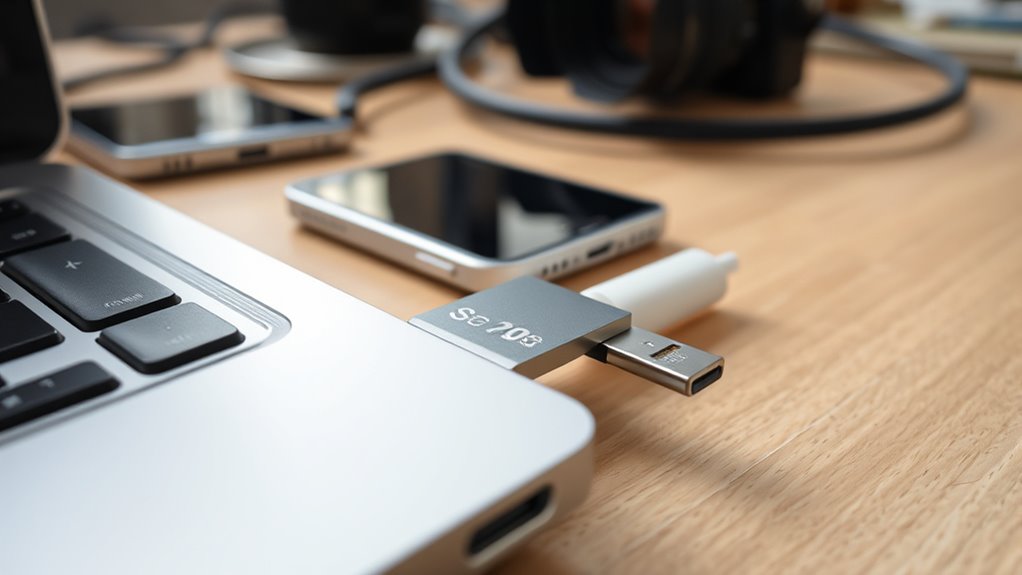
Understanding whether your host device supports a specific SD card type is essential before making a purchase or inserting a card. Your device’s firmware and hardware specify which SD family it supports—SD, SDHC, SDXC, or SDUC. Legacy devices may only recognize SD or SDHC cards up to 2GB unless updated. Newer hosts, like SDXC-capable devices, are backward compatible and accept older card types, but mismatches often cause recognition errors. Always check manufacturer documentation and card logos to confirm compatibility. Reformatting an SDXC card to an older filesystem can sometimes help, but it’s not always reliable and may reduce performance. Checking your device’s specifications is crucial to avoid compatibility issues, especially as legacy hardware may require firmware updates or specific formatting. Additionally, understanding host device compatibility requirements helps prevent potential recognition problems, and being aware of card speed class requirements ensures optimal performance. Furthermore, selecting an established brand with a reputation for quality can significantly impact the SD card’s reliability and longevity.
Common File System and Formatting Pitfalls
Using unsupported file systems or improper formatting can cause your SD card to become unreadable or damaged. Devices often reject cards with incompatible formats, and incorrect formatting may lead to file corruption or RAW partitions. To avoid these issues, always verify you use the recommended file system and proper formatting tools for your device. Checking the file system type with your computer can help ensure compatibility before using the SD card. Additionally, understanding device compatibility requirements can prevent common pitfalls related to SD card usage. Being aware of auditory processing challenges can also inform better device and file management choices to ensure your data is preserved. Moreover, selecting the appropriate formatting method tailored to your device’s specifications can significantly reduce the risk of data loss or corruption. Ensuring that your device supports file system standards is essential for maintaining reliable access to your stored data. Regularly updating your device’s firmware can also help maintain compatibility with newer SD card formats and prevent compatibility issues from arising.
Unsupported File Systems
When it comes to SD card compatibility, one of the most common issues stems from unsupported or improperly formatted file systems. Different SD card classes require specific formats: SD (SDSC) cards usually use FAT12 or FAT16, but devices limited to FAT16 may reject cards over 2 GB. SDHC cards rely on FAT32, and SDXC cards demand exFAT; formatting them differently can cause recognition failures. Operating systems also influence compatibility—older Windows or macOS versions lack native exFAT support, while some Linux distributions need additional drivers. Many devices, especially cameras or media players, only support FAT16 or FAT32 and won’t recognize exFAT or NTFS. Formatting a large card with an unsupported file system or using default OS tools that choose incompatible formats can lead to non-recognition or read-only issues. Understanding file systems is crucial to ensuring your SD card functions properly across various devices.
Corrupted or Improper Formatting
Corrupted or improperly formatted SD cards are a common cause of recognition and performance issues. If your card isn’t formatted correctly, devices may struggle to read or recognize it. Using the wrong file system, like NTFS instead of FAT32 or exFAT, can cause compatibility problems, especially with cameras and phones. Quick formatting might seem faster, but it often leaves corrupted data behind, leading to errors and recognition failures. Overwrite formatting thoroughly erases all data and resets the card, reducing the risk of issues. Additionally, choosing the correct format for your card’s capacity—FAT32 for smaller cards and exFAT for larger ones—is essential. Proper formatting ensures compatibility across devices and prevents potential errors, improving reliability and performance. Proper formatting is also crucial for maintaining data integrity and preventing potential data loss, especially when considering device compatibility and long-term storage reliability.
Identifying Card Quality and Authenticity Issues
To make certain your SD card is authentic, start by checking physical and packaging details like printing quality, labels, and security seals. Use verification tools to confirm capacity and speed, watching for discrepancies that suggest counterfeit or low-quality products. Additionally, compare firmware data and serial numbers against manufacturer records to spot signs of tampering or fakery. Performing capacity tests is also crucial, as fake cards often claim larger capacities than they can reliably store. Always ensure your card’s compatibility with devices to avoid recognition issues caused by incompatibility. Confirming the card’s authenticity through multiple methods can help prevent potential data loss or device malfunctions. Moreover, understanding and managing your cookies and privacy preferences can improve your overall user experience when troubleshooting or researching SD card issues online. Incorporating technological integration tools, like specialized apps, can further assist in verifying card authenticity and performance.
A thorough understanding of card quality can significantly reduce the risk of encountering recognition problems.
Authenticity Verification Methods
Verifying the authenticity of an SD card is essential to guarantee you’re getting genuine quality and performance. Start by inspecting the packaging: ensure product specs match the labels, check for compliance symbols, warranty info, and UPC/EAN codes, and confirm the company details are consistent. For Samsung cards, look for the hole punch on the top of the packaging and sharp adaptor printing. Examine the physical card closely—verify “SD” marks, brand logos, colors, and fonts, and check the engraved serial number. Look for watermarks, color-shift features, and brand-specific markings. Confirm plastic edges are white for genuine Samsung, and ascertain the text on the card face is sharp. Cross-reference the part number with the manufacturer’s website and perform capacity and speed tests with tools like H2testw or F3 to confirm genuine performance. Additionally, fake memory cards can sometimes display false capacity or speed results, so testing with reliable software is crucial. Performing a comprehensive visual inspection can also help identify subtle differences that indicate a fake card, such as inconsistent font or poor print quality. Always be cautious of counterfeit products that may attempt to mimic authentic packaging and markings, as these can be particularly convincing but unreliable. Moreover, understanding SD card specifications helps in making informed purchasing decisions and avoiding counterfeit items. Being aware of common counterfeit indicators can help prevent falling victim to fraudulent products.
Recognizing Quality Indicators
Recognizing quality indicators on an SD card helps you distinguish genuine products from counterfeits and identify potential performance issues. Check for proper markings, such as speed-class symbols (C, U, V, A, SD Express) that match your device’s requirements. Mismatched symbols, like V60 or V90 requiring UHS-II, can cause slow or failed performance, especially on older hosts. Compare the speed numbers on packaging to real-world benchmarks; manufacturers guarantee minimum write speeds, not peak read speeds. Look for clear, uniform molding, proper contacts, and accurate printing—irregular seams or misspellings suggest counterfeits. Genuine cards also feature credible logos, model numbers, and batch codes. Packaging should be sealed and include warranty info. Understanding the compatibility between different speed classes and host devices is essential to prevent performance bottlenecks. Additionally, verifying card authenticity through detailed inspection helps ensure your card’s authenticity and reliable performance. Ensuring that the card’s markings and physical features align with recognized industry standards can further help identify genuine products. Being aware of common counterfeit signs can further protect you from purchasing unreliable cards. Regularly checking for authenticity indicators can help prevent potential data loss due to counterfeit or substandard SD cards. Recognizing these factors is especially important given the cryptid mysteries and folklore-related misconceptions that often circulate around unverified products.
Electrical and Environmental Factors Affecting Recognition
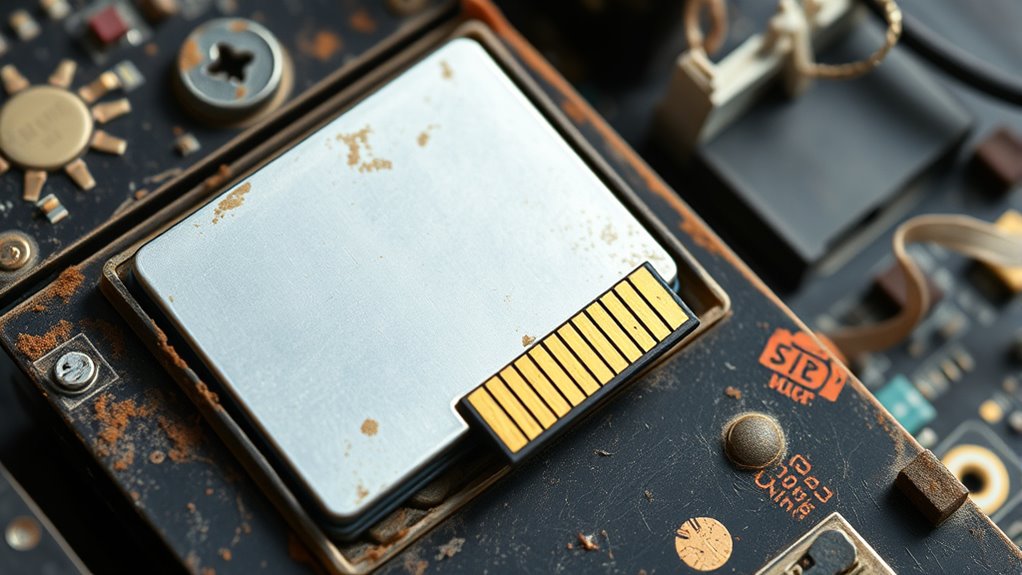
Electrical and environmental factors play a crucial role in the recognition and performance of SD cards, especially in challenging conditions. Extreme temperatures, whether high or low, can shorten your card’s lifespan and cause recognition issues—heat accelerates wear, while cold extends durability. High humidity promotes moisture buildup, leading to corrosion on contacts and degraded performance, so storing cards in dry environments helps. Dust and debris damage contacts and slots, affecting recognition; keeping these clean and using dust-resistant cases prevents problems. Static electricity can cause data corruption or card failure; always power off devices before insertion or removal. Additionally, magnetic fields, shock, and vibration stress the card’s electrical stability. Proper storage and handling practices can significantly reduce the risk of environmental damage and ensure your SD card remains compatible and reliable. Moreover, understanding electrical interference sources can help you avoid unexpected recognition failures. Being aware of electrical noise generated by nearby electronic devices can also improve the stability and compatibility of your SD cards.
Wear and Usage Patterns That Lead to Incompatibility

Frequent write and erase cycles, especially during heavy workloads like 4K video or burst photography, accelerate NAND cell wear and can lead to compatibility issues. Intensive small-file operations increase write amplification, further wearing the memory cells. Using the card in circular recording scenarios, such as dashcams, concentrates wear on limited sectors, risking unreadable areas. Exceeding endurance ratings causes permanent block failures, making the card unrecognizable. Mechanical handling also plays a role: repeated insertion, removal, or rough handling damages contacts and deforms the card. Vibration and shock lead to internal microfractures, causing intermittent recognition failures. Firmware issues, aging controllers, and low-quality chips exacerbate wear effects, reducing reliability and compatibility over time.
| Wear Pattern | Impact |
|---|---|
| Heavy workloads (4K, burst) | Accelerates NAND wear, reduces lifespan |
| Small-file churn | Increases write amplification |
| Circular recording scenarios | Causes sector wear and unreadability |
| Exceeding endurance ratings | Leads to irreversible block failure |
Practical Steps for Diagnosing Recognition Failures
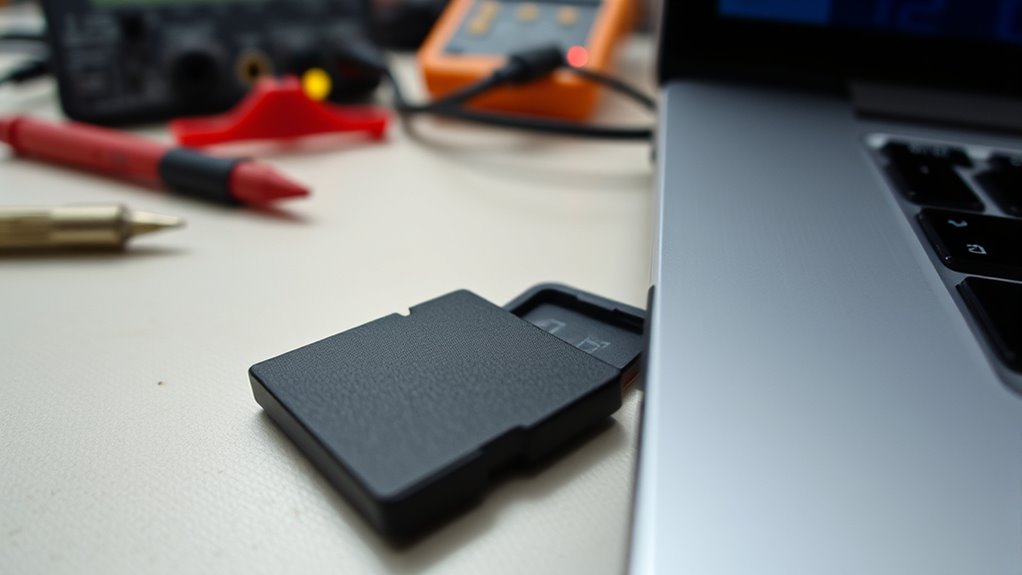
When your SD card fails to be recognized, start by performing a thorough physical inspection. Remove the card and check for visible damage, dirt, or debris in the slot. Test the SD card in different devices or readers to determine if the issue is with the card or the device. Restart your device completely or try a force restart, then reinsert the card, ensuring proper alignment. Clean the card and slot of dust before reinserting. Update device software, including drivers via Device Manager, and check for Windows updates. Use troubleshooting tools like the Windows Hardware and Devices troubleshooter or Disk Utility on Mac to scan and repair the SD card. If recognition still fails, consider testing the card with external readers or trying recovery and formatting options as a last resort. Regularly updating your device’s firmware can also help improve SD card compatibility and recognition.
Best Practices for Ensuring Reliable SD Card Use
Ensuring reliable SD card use starts with selecting high-quality, reputable brands that incorporate advanced wear-leveling algorithms, which distribute write cycles evenly and extend the card’s lifespan. To maximize performance and durability, follow these best practices:
- Use cards with sustained write speeds of at least 60 MB/s for continuous tasks.
- Choose high-endurance models that last up to 10 times longer under demanding workloads.
- Opt for IP67-rated cards to guarantee dust and water resistance, plus protection against impacts and shocks.
- Manufacturers measure reliability via MTBF or total write operations, making it important to consider these metrics when selecting cards. Additionally, handle cards gently—insert and remove with care, power off devices beforehand, and inspect regularly for damage. Store them in protective cases, limit unnecessary writes, and periodically check their health to maintain ideal reliability.
Advanced Solutions for Recovering Unrecognized Cards
Advanced solutions for recovering unrecognized SD cards involve employing forensic imaging techniques that prioritize data integrity and minimize further loss. Begin by using hardware or software write-blockers to create a bit-for-bit forensic image, ensuring the original data remains untouched. Opt for sector-by-sector imaging tools capable of handling bad sectors and performing multiple read passes with adjustable timeouts to maximize data recovery. Store images on a drive at least as large as the SD card and verify their integrity with checksums like MD5 or SHA1. Consider partial or sparse imaging to quickly capture healthy data while isolating failing regions for later recovery. Document device details, imaging settings, and chain-of-custody info to support subsequent analysis or legal needs. Using specialized imaging software can improve recovery success. These methods enhance your chances of salvaging valuable data from unrecognized or damaged SD cards.
Frequently Asked Questions
Can a Compatible SD Card Still Be Unrecognized by My Device?
Yes, even a compatible SD card can still go unrecognized by your device. You might have dirty or damaged contacts, loose connections, or improper formatting that prevent recognition. Sometimes, outdated or missing drivers or software issues cause detection problems. Make sure to clean the contacts, reinsert the card properly, update drivers, or reformat the card to guarantee compatibility. Testing the card in another device can also help identify if the problem lies with the card or the device.
Do All SD Cards Support Both Read and Write Functions Equally?
You might be surprised to learn that most SD cards support both read and write functions, but their speeds often differ markedly. For instance, non-UHS cards typically max out at 25 MB/s, while UHS-I cards reach up to 104 MB/s. Higher classes like U3 or V90 focus on sustained write speeds, so your card may read data faster than it can write. Always choose a card compatible with your device’s speed requirements.
How Does Counterfeit SD Card Affect Device Recognition?
Counterfeit SD cards often cause devices to fail recognizing them. When you insert a fake, your device might show errors, refuse to read or write, or even treat the card as if it’s not inserted. This happens because counterfeit cards have irregular electronic IDs, fake controllers, or mismatched capacity reports. As a result, your device struggles to communicate with the card, leading to recognition failures and potential data corruption.
Can Environmental Factors Permanently Damage SD Card Recognition?
Yes, environmental factors can permanently damage your SD card’s recognition. Exposure to extreme temperatures, moisture, dust, or magnetic fields causes physical and electronic damage that degrades the memory chips and contacts. Over time, this leads to irreversible read/write errors or complete failure. To protect your SD card, avoid harsh environments, keep it dry, and store it within recommended temperature ranges, ensuring it stays functional and recognizable.
Is It Possible to Recover Data From an Unrecognized SD Card?
Yes, you can recover data from an unrecognized SD card. Imagine a locked door, and data as your treasured belongings inside. You’ll need to connect the card properly, possibly with an external reader, then run recovery software like Disk Drill or EaseUS. These tools scan for lost files even if the card isn’t detected initially. Just remember, don’t write new data on the card, or you risk overwriting your precious files forever.
Conclusion
Think of your SD card as a trusted companion on your digital journey. When it’s not recognized, it’s like a silent cry for understanding and care. By respecting its needs—compatibility, quality, and proper handling—you nurture a bond that keeps your memories alive. Don’t let frustration be the storm that clouds this connection. Instead, approach each issue as a lesson, restoring harmony and trust in your device’s silent, loyal partner.