To build a better incident timeline from multiple clips, start by synchronizing videos using common reference points like timestamps, audio cues, or visual markers. Organize your clips in logical groups, label them clearly, and take notes on key moments and discrepancies. Continuously verify details like background, lighting, and environmental cues for consistency, adjusting as needed. Maintain backups and stay focused on relevant footage. Following these steps helps create a precise timeline—keep exploring to master the process entirely.

Get business pricing on garage and car supplies
- Business-only prices and quantity discounts
- Tax-exempt purchasing
- Multiple users, one account, clear invoices
Key Takeaways
- Use common reference points like timestamps, audio cues, or visual markers for precise synchronization of clips.
- Organize clips with clear labels and grouped related footage to streamline review and ensure logical sequencing.
- Continuously verify environmental, lighting, and background details across clips to confirm consistency and identify discrepancies.
- Revisit and refine the timeline iteratively, adjusting sequences based on new findings or mismatches.
- Regularly back up organized footage and notes to prevent data loss and support efficient workflow management.
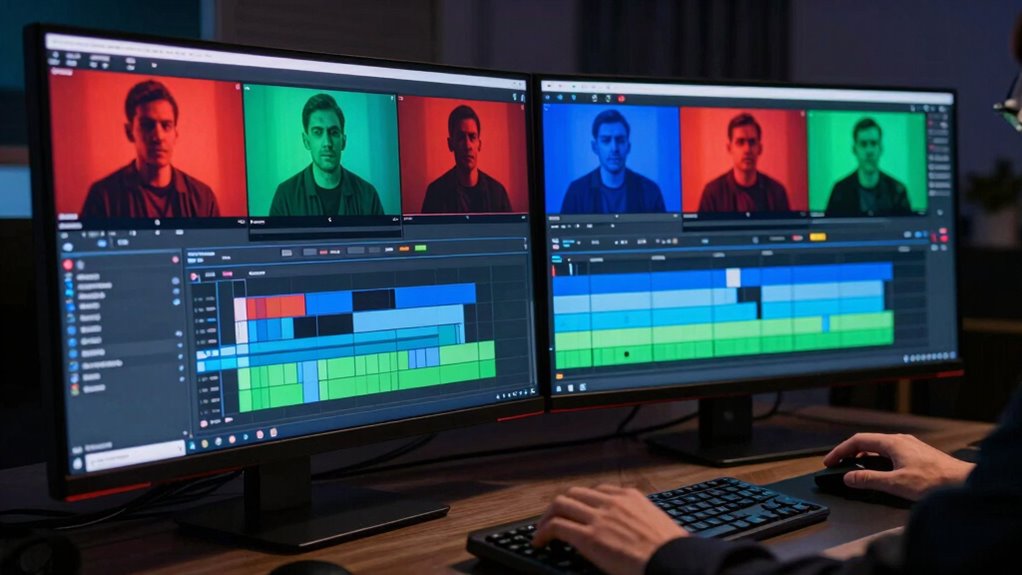
When dealing with multiple video clips to reconstruct an incident, creating an accurate and coherent timeline can be challenging. The key to overcoming this difficulty lies in effective video synchronization and well-planned clip organization. These steps allow you to piece together the sequence of events with clarity and confidence. First, focus on video synchronization. This process involves aligning your clips based on common reference points, such as timestamps, audio cues, or visual markers like flashes or specific movements. If the footage includes synchronized audio or metadata, use that to match clips precisely. For footage without clear markers, look for identifiable features—like a distinctive vehicle or person—that appear across clips at similar moments. Synchronization tools or software can automate parts of this process, saving you time and reducing errors. By guaranteeing that your clips are correctly synchronized, you establish a solid foundation for constructing an accurate timeline. Additionally, understanding the importance of precise video synchronization helps ensure the reconstructed incident is reliable.
Next, prioritize clip organization. Once synchronized, arrange your clips systematically. Create a folder structure or labeling system that clearly indicates the chronological order or source of each clip. Group related clips together to streamline your review process. As you watch, take notes on key moments, timestamps, and any discrepancies you notice. This helps you maintain control over the sequence and prevents confusion as you build the timeline. When organizing clips, consider their quality and relevance; discard or set aside footage that doesn’t contribute to your understanding of the incident. Proper organization reduces the risk of mixing up sequences and makes it easier to spot gaps or inconsistencies. Incorporating logical sequencing into your workflow can further enhance the accuracy of your timeline. Furthermore, being aware of potential video artifacts or distortions can help you identify issues that might impact your reconstruction. Paying attention to metadata and visual cues can provide additional context and improve synchronization accuracy. Recognizing environmental changes and background details across clips can also support the alignment process. As you proceed, continually verify your timeline against known reference points. Cross-check details across clips—such as environmental changes, lighting, or background sounds—to ensure consistency. Adjust the sequence if you find discrepancies, and revisit synchronization if needed. Remember, building a reliable incident timeline is an iterative process; it’s rare to get everything perfect on the first try. Regularly backing up your organized clips and notes can save you time if you need to revisit or revise your work later.
Products Worth Considering

Innova 5610 OBD2 Bidirectional Scan Tool

Chemical Guys HOL123 Car Cleaning Kit – 14-Item Interior & Exterior Detailing Set

VIOFO A229 Pro 3-Channel 4K Dash Cam with STARVIS 2 Sensors
As an affiliate, we earn on qualifying purchases.
Frequently Asked Questions
What Tools Are Best for Editing Multiple Video Clips?
You should choose editing tools like Adobe Premiere Pro or DaVinci Resolve, which excel at handling multiple clips. These programs let you perform precise color correction and audio balancing, ensuring your footage looks and sounds consistent. They also offer advanced features like timeline management and effects, making it easier to synchronize and edit clips seamlessly. With these tools, you can craft a professional, cohesive incident timeline efficiently.
How Do I Synchronize Clips From Different Sources?
Ever wondered how to seamlessly synchronize clips from different sources? Start by identifying common reference points like visual cues or audio signals. Use your editing tool’s features for audio synchronization to align audio tracks precisely, then refine clip alignment for visual consistency. Why settle for anything less than perfect? Carefully adjusting these elements guarantees your incident timeline is accurate and cohesive, making your final edit more professional and reliable.
What File Formats Are Recommended for Incident Footage?
You should use widely supported formats like MP4 or MOV for incident footage, as they balance quality and file size well. Opt for formats with efficient video compression to keep files manageable without sacrificing clarity. Additionally, choose footage that’s been stabilized to guarantee smooth playback, making it easier to analyze. These formats and stabilization practices help create a clear, reliable incident timeline from multiple clips.
How Can I Ensure the Timeline Remains Organized?
To keep your timeline organized, focus on metadata management and clip labeling. Assign clear labels to each clip, like timestamps or source info, so you can easily identify them later. Use consistent metadata tags to categorize footage by date, location, or camera angle. Regularly update and review these labels and tags as you assemble your timeline, ensuring everything stays structured and accessible for quick edits and accurate incident reconstruction.
What Are Common Mistakes to Avoid When Creating Incident Timelines?
You should avoid common mistakes like losing track of sequence consistency or neglecting annotation accuracy. If you skip verifying the order of clips, your timeline becomes confusing and unreliable, leaving out vital details. Failing to double-check annotations can cause misinterpretations. Stay vigilant, cross-reference clips meticulously, and make certain each event’s sequence and notes are precise. This way, your incident timeline remains clear, trustworthy, and effective in revealing the full story.
Conclusion
By weaving your clips into a clear, cohesive tapestry, you turn scattered moments into a compelling story. Think of your timeline as a river, guiding viewers smoothly through the flow of events, avoiding jagged rocks of confusion. With careful organization and sharp editing, you’ll craft a narrative that shines like a lighthouse in a storm—illuminating every detail and guiding your audience safely to understanding. Your incident timeline becomes not just a record, but a masterpiece of clarity.