To automatically back up footage, use professional tools like ShotPut Pro or Silverstack for fast, verified offloads from your cameras. Set up scheduled local backups with RAID or NAS systems to guarantee continuity and redundancy. Incorporate cloud storage solutions for offsite safety, enabling seamless, automated data transfer. Combine physical drives with cloud access for a hybrid approach. Keep your system monitored and updated for maximum security. Continue here to discover how all these options can work together effortlessly.
Key Takeaways
- Use OS watch folders or auto-mount events to trigger automatic backups when footage is added.
- Implement checksum-verified backup copies with software like Silverstack for reliable data integrity.
- Schedule regular syncs between onsite storage (RAID/NAS) and offsite cloud backups for redundancy.
- Automate retries, error notifications, and logging to ensure continuous and monitored backup processes.
- Incorporate drive health monitoring and firmware updates to maintain hardware reliability and prevent data loss.
Use Professional Offload and Verification Tools
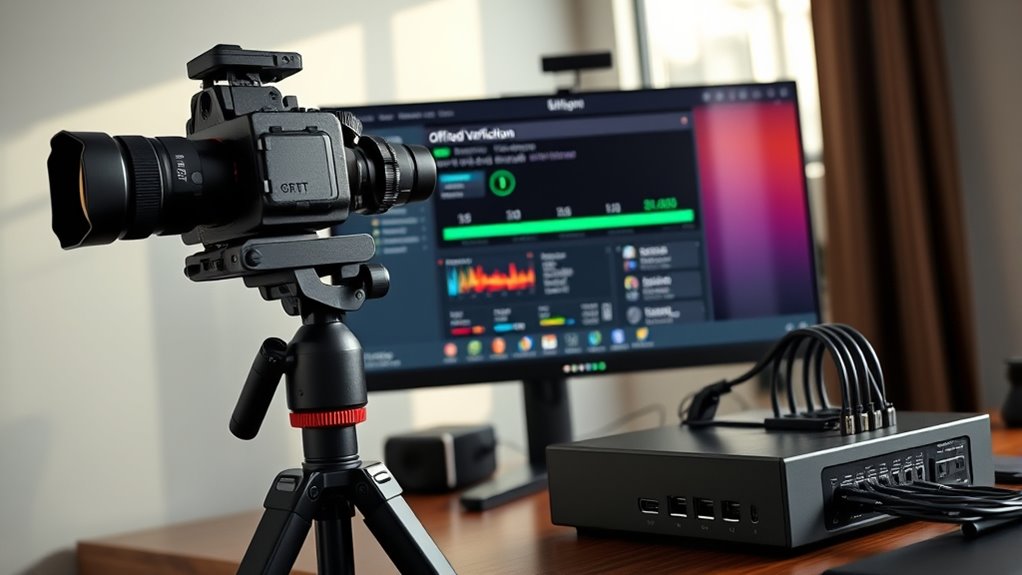
Have you considered using professional offload and verification tools to guarantee your footage stays safe and intact? These tools streamline the process, reducing errors and ensuring data integrity. ShotPut Pro simplifies offloading from various media like AVCHD and P2, sending copies to multiple drives simultaneously for instant backups. Its two verification options guarantee byte-for-byte accuracy, with a faster mode offering over 99% reliability. Silverstack speeds up offloads by 17 seconds compared to competitors and uses XXHash checksums for reliable verification, especially with ARRIRAW files. These tools help you maintain source fidelity, detect early signs of corruption, and create detailed activity logs, making your footage safer during transfer and storage. Data integrity is essential for reliable media management and safeguarding your valuable recordings. Additionally, integrating cloud-based verification can provide an extra layer of security and remote access to your backups. Implementing these professional tools reduces manual errors and promotes consistent backup procedures, giving you peace of mind during critical workflows.
Set Up Automated Local Backups During Ingest

Setting up automated local backups during ingest can considerably streamline your workflow and reduce the risk of data loss. You can configure operating system watch folders or use auto-mount events for USB/SD cards to trigger immediate backup jobs when media connects. File-system event watchers like inotify, FSEvents, or FileSystemWatcher detect new files and launch checksum-verified copies, ensuring data integrity. Incorporate camera-card-aware monitoring to avoid copying temporary or metadata files. Use simple copy-and-verify scripts or consumer-grade software that perform checksum checks during transfer, creating parallel copies to satisfy redundancy. Automate retries and error notifications to catch issues early. Log all activities for audits. This setup ensures your footage is backed up locally in real-time, minimizing manual intervention and safeguarding your media during ingest. Reliable backup methods and automation tools can further enhance the robustness of your backup workflow. Implementing these tools can also facilitate efficient media management by automatically organizing and cataloging your files during the backup process. Additionally, integrating dedicated backup software designed for media workflows can optimize performance and reliability. Incorporating automated error detection can prevent unnoticed failures, further securing your media assets during the ingest process. Employing smart automation techniques can help adapt your backup process to changing media types and storage devices, while leveraging real-time monitoring systems can provide immediate alerts for backup issues.
Implement Onsite RAID or NAS With Scheduled Syncs

To safeguard your footage onsite, setting up RAID or NAS with scheduled syncs guarantees your data stays current and secure. Automating file transfers and checks helps maintain consistency, while monitoring drive health prevents unexpected failures. Implementing these strategies keeps your storage resilient and ready for any disaster. RAID configurations ensure data redundancy and protection against drive failures, providing an extra layer of security for your valuable footage. Regularly updating your firmware and software ensures your storage system benefits from the latest security patches and improvements. Incorporating drive health monitoring tools can alert you to potential issues before they lead to data loss. Additionally, routine data backups help further protect your footage against unforeseen circumstances. Utilizing smart monitoring features available in some NAS systems can further enhance your data protection by providing real-time alerts and system diagnostics, ensuring your system remains reliable and secure.
Set Up Redundant Storage
Implementing onsite RAID or NAS with scheduled syncs provides a reliable foundation for redundant storage, ensuring your footage remains protected against hardware failures. RAID levels like 1, 5, 6, or 10 offer fault tolerance by mirroring or distributing data across multiple drives. Hardware RAID delivers faster performance and features like hot-swaps, while software RAID is budget-friendly but less reliable. Onsite RAID simplifies management and keeps data available during system issues, making it ideal for critical operations. Additionally, understanding storage best practices can further enhance data security and recovery options.
Automate File Synchronization
Automated file synchronization guarantees your footage stays current across onsite storage devices without manual effort. Using NAS or RAID arrays with scheduled syncs ensures your data remains consistent and protected. NAS devices support built-in apps or OS tools to automate transfers, syncing files across networked drives at set intervals. For file servers, third-party software or cron jobs handle scheduled syncs, maintaining onsite RAID consistency. Combining NAS or RAID with network protocols allows seamless mirroring without manual intervention, keeping footage updated across multiple devices. Many NAS units support hot-swapping drives, enabling maintenance without disrupting sync processes. This setup reduces the risk of data loss, saves time, and ensures your footage stays synchronized automatically, giving you peace of mind and a reliable backup system onsite. Regular testing of backup integrity is also essential to confirm that your synchronization processes are functioning correctly and that your footage can be restored if needed.
Monitor Drive Health
Monitoring drive health is essential for ensuring your onsite RAID or NAS setup remains reliable and protected. Regular checks help catch issues early, preventing data loss. Use tools like RAID controller monitoring to track disk integrity, redundancy, and rebuild progress via Nagios or centralized dashboards. S.M.A.R.T. tools, such as MegaRAID Storage Manager or smartctl, analyze individual drive health metrics, detecting early signs of failure. NAS-specific tools like QNAP’s Drive Analyzer or Synology DSM schedule routine tests and generate health predictions. Keep an eye on performance metrics like throughput, latency, and network transfer rates with tools like CheckMK or SolarWinds SRM. Set up alerts to receive instant notifications on degraded arrays, failing drives, or performance drops. Implementing environmental considerations such as temperature monitoring can further protect your drives from overheating and failure. Regularly reviewing sector performance metrics can help you identify trends and optimize your storage for better resilience and growth potential. Additionally, staying informed about drive maintenance best practices can extend the lifespan of your hardware and reduce unexpected downtime. Incorporating regular firmware updates can also improve drive compatibility and performance, enhancing overall reliability. Furthermore, incorporating automated backup routines ensures data is continuously protected even if hardware issues occur.
Automate Cloud Storage and Offsite Backups

Automating your cloud storage guarantees your footage is backed up reliably without manual effort, reducing the risk of data loss. By choosing providers with strong access controls and encryption, you keep your footage secure during transfer and storage. Balancing storage class options helps you manage costs while maintaining quick access to recent footage. Implementing privacy policies and transparent data handling practices ensures your backups adhere to privacy standards and build user trust. Additionally, selecting free floating backup solutions can offer flexible options suited to various needs. Incorporating support breakfast options can enhance the overall backup experience, making it more user-friendly and accommodating different preferences. Leveraging automated backup schedules ensures your footage is regularly saved without having to remember manual steps, providing peace of mind for daily commuters.
Automated Cloud Uploads
To guarantee your footage is safely stored offsite without adding manual steps, cloud upload automation offers powerful options. These methods ensure your footage is continuously protected, saving you time and reducing errors. With real-time or near-real-time sync, your camera or NVR keeps your footage current, minimizing data loss. Scheduled backups send only changed data, lowering bandwidth and costs. Direct-to-cloud uploads eliminate local storage, pushing footage straight from devices to storage providers. Hybrid workflows record locally while automatically backing up to the cloud for quick recovery. Automation simplifies management and ensures consistent backups across multiple devices. – Policy-based scheduling and retention control costs. – Incremental and block-level transfers reduce upload volume. – Bandwidth throttling during off-peak hours prevents network congestion. – Immutable backups protect against tampering and ransomware.
Secure Access Controls
Implementing robust access controls is key to safeguarding your cloud storage and offsite backups. Use IAM and RBAC to assign specific roles like read-only or write access, ensuring users only see what they need. Cloud IAM makes managing permissions scalable at the bucket level, reducing complexity. Regularly review and trim unnecessary permissions with IAM Recommender to minimize risks, and avoid granting admin privileges to service accounts. Follow the principle of least privilege by giving users only the permissions essential for their tasks, such as read access to logs. Enable Multi-Factor Authentication (MFA) for added security, especially on root accounts. Audit access logs regularly to detect unusual activity, and restrict access through domain or IP whitelists to further protect your backups from unauthorized access. Additionally, implementing Floating on Water techniques can help ensure your backups are resilient and easily recoverable in case of emergencies. Incorporating redundant storage options provides an extra layer of protection, ensuring your data remains safe even if one backup location is compromised. Regularly reviewing your access control policies helps maintain security standards and adapt to evolving threats. Utilizing encryption solutions both at rest and in transit can further enhance your data security and compliance. Using backup automation tools can further streamline the process and reduce the chances of human error.
Cost-Effective Storage Options
Choosing cost-effective storage options for your footage involves leveraging both affordable consumer cloud providers and pay-as-you-go services that automatically manage data tiers. Consumer clouds like pCloud and TeraBox offer low-cost plans, with pCloud providing lifetime options and streaming features, while TeraBox offers free tiers but limits large file uploads. iDrive is great for multi-device backups at about $5/month, though slower uploads can impact initial seeding. For scalable long-term storage, pay-as-you-go options like Backblaze B2 and AWS S3 automatically move older footage to cheaper tiers, reducing costs. These solutions often include tiered lifecycle management that minimizes expenses. Consider these advantages:
- Tiered lifecycle management minimizes expenses
- No upfront hardware costs
- Pay only for storage, egress, and requests
- Local NAS or NVR can sync with cloud for efficiency
Combine Physical Drives With Cloud Access for Hybrid Solutions

Combining physical drives with cloud access creates a flexible hybrid backup solution that balances performance, cost, and security. You can keep recent footage on local storage for quick access and review, while archiving older content to affordable cloud tiers like S3, Glacier, or Backblaze. Automate lifecycle policies to move footage from hot to cold storage as it ages or becomes less relevant. Use scheduled, policy-driven offloads on your NAS or recorder to eliminate manual transfers. Implement tiered retention, ensuring critical camera footage remains longer in both local and cloud layers for compliance. Additionally, encrypt data during transfer and at rest, and utilize immutable cloud storage for ransomware protection. This hybrid approach optimizes your storage capacity and enhances data security without sacrificing accessibility. Hybrid cloud storage supports seamless data management across different environments, making it ideal for scalable surveillance solutions.
Protect Work-In-Progress Files With Endpoint Backup Systems

Protecting your work-in-progress files is essential to prevent data loss and guarantee quick recovery during ongoing projects. Endpoint backup systems install agents on your devices, capturing files or full images and connecting securely to backup repositories. You can choose between full, incremental, or differential backups, with incremental backups saving bandwidth and storage after the initial full backup. Options like continuous data protection or scheduled backups (daily or weekly) impact recovery points and network load. Centralized management consoles allow you to deploy policies, monitor agent health, and generate reports, simplifying large-scale backup management. Keep in mind these key features:
- Versioning for point-in-time restores and forensic analysis
- Encryption during transit and at rest for security
- Deduplication and compression to reduce storage needs
- Immutable snapshots to protect against ransomware and tampering
Endpoint backup is designed to safeguard data across all devices, including those used remotely, ensuring comprehensive protection regardless of location.
Establish Monitoring, Testing, and Policy Automation

Implementing effective monitoring, testing, and policy automation guarantees your backup system remains reliable and secure. Start by defining clear objectives, such as security, compliance, efficiency, and staff management. Invest in high-quality cameras with AI capabilities like face and object recognition, and adjust motion detection sensitivity based on lighting conditions. Combine edge-based and cloud AI for ongoing threat detection calibration over 30 days. Regularly test your system with layered AI analytics, WDR cameras, and PTZs to ensure accurate detection and minimal false alarms. Develop extensive policies for data retention, asset management, and access control, using VMS and automation tools. Automate threat recognition, local processing, and notifications, ensuring seamless integration with existing systems. Continuous monitoring, testing, and policy refinement keep your backup system robust and trustworthy. Advancements in cybersecurity are essential to protect sensitive video data from emerging cyber threats and prevent unauthorized access.
Frequently Asked Questions
How Often Should I Run Checksum Verifications on My Backups?
You should run checksum verifications daily for mission-critical footage, weekly for high-importance data, monthly for medium-importance archives, and quarterly for low-importance storage. Adjust frequency after incidents or migrations, and for footage within the first 30–90 days, verify more often. Use automated, incremental checks during off-peak hours to balance resource use, ensuring data integrity without disrupting your backup operations.
What Are the Best Practices for Scheduling Automated Syncs?
Imagine your footage syncing seamlessly in the background, like clockwork. You should schedule automated syncs during low-traffic times, such as overnight or weekends, to prevent workflow disruptions. Set regular intervals—daily or weekly—based on your project’s pace. Use reliable software with notifications for completion. Consistently verify sync accuracy afterward to catch any issues early, ensuring your footage stays perfectly aligned without manual intervention.
How Can I Ensure Quick Recovery From Cloud Backups?
To guarantee quick recovery from cloud backups, choose providers with fast restore speeds and measurable throughput. Organize your data with granular selection, versioning, and tagging critical files for prioritization. Reserve bandwidth for restores, use WAN optimization and local caching, and regularly test recovery procedures. Keep detailed runbooks, credentials, and offline copies handy. Monitoring restore performance and adjusting configurations based on real-world metrics will keep your recovery process efficient and reliable.
What Security Measures Are Recommended for Offsite Backups?
You should secure offsite backups with access controls like role-based permissions and multi-factor authentication to prevent unauthorized access. Encrypt your data at rest with strong algorithms (AES-256) and use secure transfer protocols like TLS. Store backups in physically secure, monitored facilities with biometric access, and implement chain-of-custody procedures. Regularly test your backups for integrity, maintain tamper-evident logs, and keep immutable copies to protect against ransomware and tampering.
How Do I Test the Integrity of My Backup System Regularly?
You test your backup system regularly by establishing a consistent schedule, like weekly or monthly, and automating these checks. Use checksum verifications, sample restores, and booting virtual machines from backups to confirm integrity. Monitor results through dashboards, log errors, and perform full recovery tests annually. Keep documentation up-to-date, review recovery procedures, and track issues to make certain your backups remain reliable and ready when needed.
Conclusion
By setting up automated backups, you guarantee your footage stays safe and never slips through the cracks. Whether you choose local storage, cloud solutions, or a hybrid approach, consistency is key. Don’t wait for a storm to hit before safeguarding your work—stay ahead of the game. Remember, an ounce of prevention is worth a pound of cure; taking these simple steps now keeps your creative projects in the clear.