If your footage has no audio, you might have accidentally turned off a setting or permission. Check your device’s volume sliders to guarantee media and notification sounds are up. Make sure microphone access is enabled in your system or app settings. Also, verify that no hardware issues or connection problems, like Bluetooth audio routing, are interfering. Software or codec incompatibilities can also cause silence. If you explore further, you’ll discover more ways to troubleshoot this common issue.
Key Takeaways
- Ensure device volume is turned up for all audio streams, including media, notifications, and calls.
- Check app permissions to confirm microphone and audio access are enabled in device settings.
- Verify that the media file or footage contains an audio track and hasn’t been muted or muted accidentally.
- Confirm that external accessories, like headphones or Bluetooth devices, are not redirecting or silencing audio.
- Update media players and device firmware to fix potential codec or compatibility issues causing silent footage.
Checking Device Volume Settings

To start troubleshooting silent footage, you should check your device’s volume settings. Press the physical volume buttons on your phone; these usually display an on-screen slider for Media, Call, Ring, Notification, and Alarm volumes. If the slider is muted or set to zero, your footage will play silently. Don’t forget that modern devices often have multiple volume streams, so adjust each one if needed. On some phones, expanding the volume menu with a three-dot or down-arrow icon reveals all streams. Apps can also have their own internal volume controls—check those if available. Sometimes, accidental button presses or debris can cause volume buttons to stick or malfunction, so clean around them to restore proper function. Additionally, ensure your device’s audio output settings are correctly configured, as incorrect settings can also silence media playback. Being aware of audio technology features like automatic volume adjustment can also help prevent unexpected silence during playback. Also, some devices support smart volume control features that automatically modify volume levels based on ambient noise, which might cause sudden volume drops. Understanding how audio streams are managed on your device can help you identify and fix the source of the issue more effectively.
Ensuring Microphone Access Is Enabled
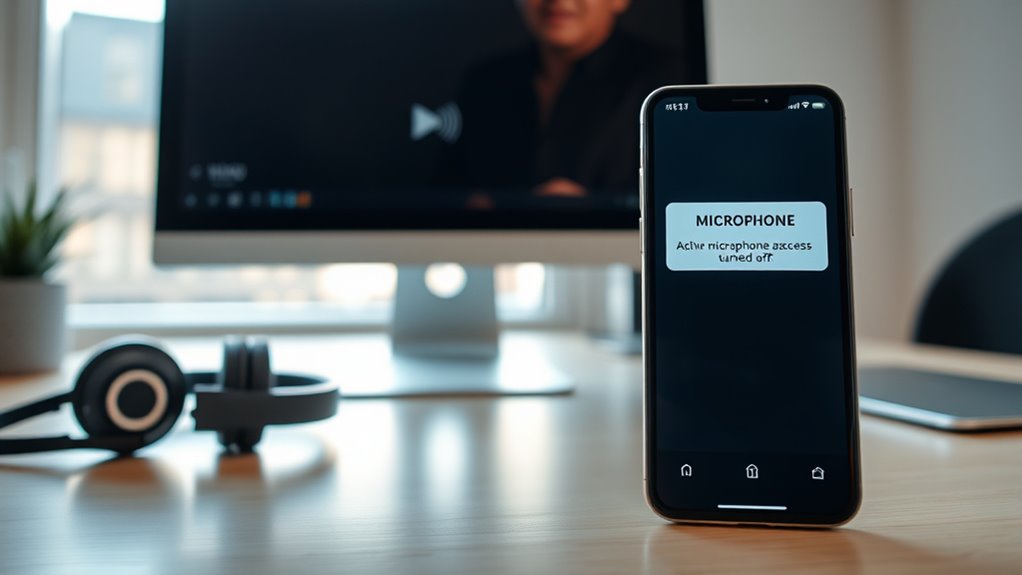
Checking your device’s volume settings is just the first step in troubleshooting silent footage. You also need to verify microphone access is enabled at the system level. On Windows, visit Privacy & security → Microphone and make sure the toggle is on; turning it off blocks all app access. On macOS, go to System Settings → Privacy & Security → Microphone and confirm it’s activated. For Android, check Settings → Privacy or Apps → Permissions → Microphone, and validate access is granted. On iOS, head to Settings → Privacy & Microphone and make sure it’s enabled globally. Remember that enterprise devices might have policies preventing microphone use, so consult your IT administrator if needed. Make certain these settings are properly enabled, as disabling microphone access at the system level prevents any app from recording audio, leading to silent footage. Additionally, system policies may restrict microphone permissions, so verify your device’s security settings if issues persist. Ensuring proper permissions are granted is crucial for recording audio successfully.
Verifying App Permissions and Settings
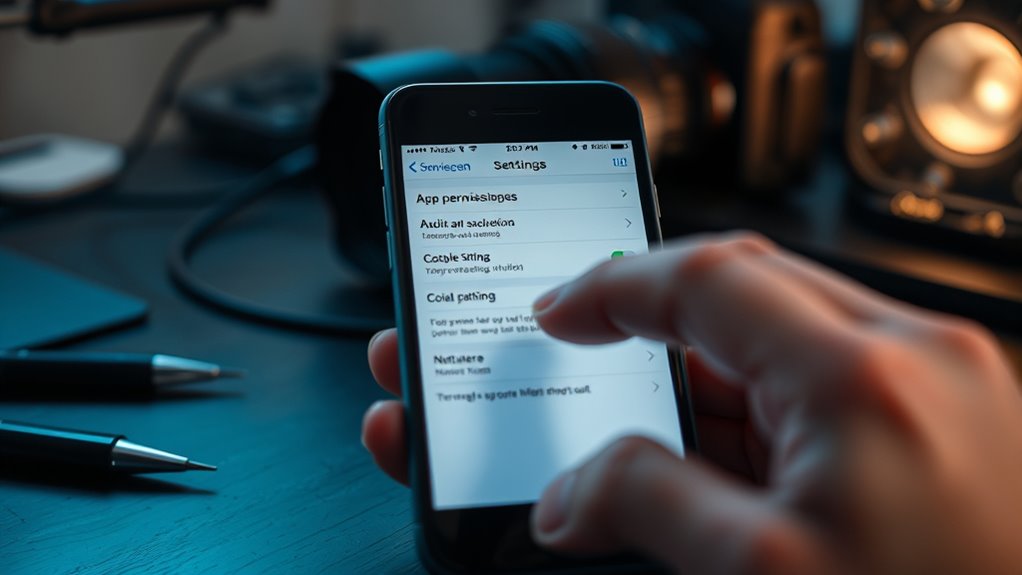
Verifying app permissions and settings is essential when troubleshooting silent footage, especially after confirming system-level access. You need to verify the app has proper permission to access audio files and playback. Check permissions in the Permission Manager under Settings > Security & Privacy > Privacy > Permission manager. Look for Music and audio permissions and verify if the app is set to Allow. Adjust permissions if needed to enable audio access. Ensuring the app has the correct permission settings can prevent playback issues caused by restrictions. Additionally, double-checking app configuration can help identify if any specific settings are blocking audio playback or causing conflicts. It’s also helpful to ensure that smart device integrations are correctly set up to facilitate seamless audio streaming and control. Being aware of best practices for app permissions can further reduce troubleshooting time and improve overall app functionality. Regularly updating your app and device software can also help resolve compatibility issues that may affect audio playback.
Examining Hardware and Connection Issues

Hardware and connection issues often cause silent footage by disrupting audio input or output. If your phone case covers the microphone or debris blocks its ports, your recordings may have no sound. Physical damage or faulty hardware can also prevent audio capture. External accessories, like covers or incompatible mounts, might interfere with mic function. Check that your device volume isn’t set to zero and that the silent or mute switches aren’t engaged. Bluetooth connections can divert audio, especially if paired headphones or speakers take priority, or if interference occurs from nearby wireless devices. Ensure Bluetooth devices are fully disconnected when recording. Additionally, if you’re importing footage from an SD card, verify that the card is inserted correctly, as some cameras require it for audio linkage. These hardware and connection factors can silently eliminate sound in your videos. Regular maintenance and inspections can help identify and prevent hardware-related audio issues before recording, especially considering the intricate details and craftsmanship involved in high-end devices. Being aware of audio hardware integrity can further prevent silent recordings. Properly checking the connectivity setup and device settings can also help diagnose and resolve audio problems more efficiently. Additionally, power consumption insights highlight that energy fluctuations or power issues can sometimes affect hardware performance, including audio components.
Troubleshooting Software and Codec Problems

Software and codec problems are common causes of silent footage, especially when media players or editing programs fail to recognize or properly decode audio streams. If your video plays without sound, check if your system needs a codec pack like K-Lite, which includes nearly all necessary decoders for Windows. Mac users can often bypass this by using VLC Media Player, which has built-in codecs. Incompatible audio codecs, such as Dolby Digital AC3 or AAC, can also cause issues—renaming files or installing specific codecs like x264vfw or MJPEG decoders may help. Ensuring that your media files use supported audio codecs like AAC or MP3 can prevent playback issues. Adjust software settings, like increasing cache in VLC or resetting preferences, to resolve conflicts. Converting files to MP4 with H.264 and AAC codecs using VLC or HandBrake can improve compatibility. Always keep your media software, OS, and firmware updated for superior playback, and be aware that codec compatibility is crucial for seamless video playback. Additionally, verifying audio stream presence within media files can help diagnose silent footage issues. Regularly checking your media files for correct audio synchronization can also prevent silent playback problems. Moreover, using media file repair tools can help fix corrupted audio streams that might be causing silence. Being aware of file corruption issues can often save time troubleshooting silent videos.
Frequently Asked Questions
Can a Faulty Microphone Cause No Audio in Recorded Footage?
Yes, a faulty microphone can cause no audio in recorded footage. If your microphone has physical damage, dust buildup, broken wires, or loose connections, it won’t pick up sound properly. Additionally, driver issues or incorrect settings can prevent the microphone from functioning during recording. To fix this, check the hardware, update or reinstall drivers, and verify the microphone is enabled and set as the default device.
Does Bluetooth Connection Affect Audio Recording Quality?
Yes, your Bluetooth connection influences audio recording quality. When the signal weakens due to distance, obstacles, or low battery, it causes drops or artifacts, leading to degraded sound. The compression inherent in Bluetooth codecs also reduces audio fidelity, especially with lower bitrate codecs like SBC. To improve quality, keep devices close, ensure good support for high-quality codecs like aptX or LDAC, and maintain strong, stable connections.
How Do I Detect Hidden System Settings Blocking Audio?
Think of your system settings as a secret garden, often hidden behind locked gates. To uncover hidden blocks, explore Privacy & Security settings for apps’ microphone and audio permissions, making sure they’re enabled. Check your sound control panel for disabled or muted devices, and verify driver status. Also, review app-specific audio settings—like Game Bar or app permissions—to ensure nothing is accidentally turned off, letting your system’s audio flow freely.
Can Outdated Firmware Cause Audio Recording Issues?
Yes, outdated firmware can cause audio recording issues. It may lead to sync bugs, microphone detection failures, or degraded audio quality. When firmware isn’t current, hardware communication becomes unstable, affecting your device’s ability to record or transfer audio properly. Updating your firmware following manufacturer instructions can fix these problems, ensuring your recording equipment functions smoothly. Always check for firmware updates before troubleshooting audio problems related to hardware performance.
Is There a Way to Recover Lost Audio From Corrupted Files?
Yes, you can recover lost audio from corrupted files. Start by trying non-destructive methods like remuxing the file with FFmpeg using stream copy, which rebuilds the container without re-encoding. If that fails, use repair tools like VLC, or extract the audio track to see if it remains intact. For more complex issues, consider specialized repair software or professional recovery services, especially if the data is physically damaged.
Conclusion
Remember, when it comes to troubleshooting your footage’s missing audio, patience is key. Double-check your volume settings, permissions, and connections, and don’t overlook potential software glitches. Sometimes, the tiniest detail can cause big issues. As the saying goes, “A stitch in time saves nine.” By taking quick, thorough steps now, you’ll save yourself headaches later and ensure your footage sounds as good as it looks.