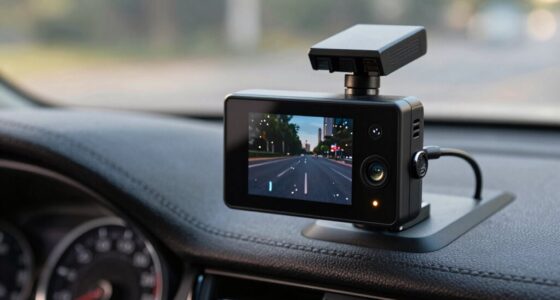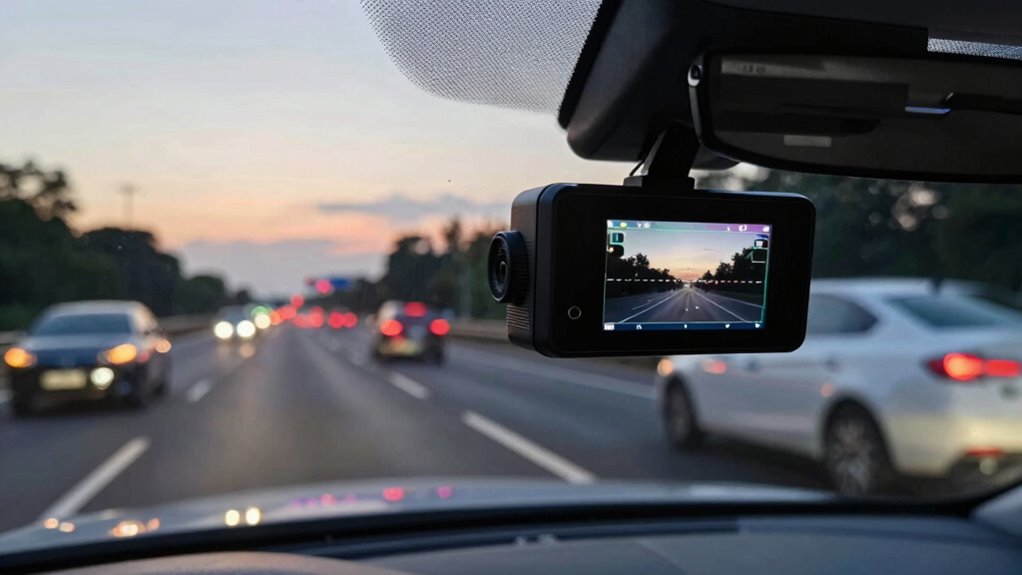
If your dash cam stops recording randomly, it could be due to power issues, faulty memory cards, or software glitches. Check that your power connections are secure and stable, and test the voltage with a multimeter. Inspect the memory card for corruption or limited space, and consider updating firmware to fix bugs. Regular maintenance helps prevent these problems. Keep exploring for tips to troubleshoot and keep your device functioning smoothly.
Key Takeaways
- Check for power supply issues, loose connections, or blown fuses causing intermittent recording stops.
- Inspect and format the memory card to prevent corruption and ensure sufficient storage capacity.
- Update the dash cam firmware regularly to fix bugs and improve recording stability.
- Clean the lens and sensor, and remove obstructions like dust, ice, or snow to maintain clear footage.
- Perform a factory reset if the device experiences persistent glitches, and seek professional help if problems persist.
Common Causes of Random Recording Stops
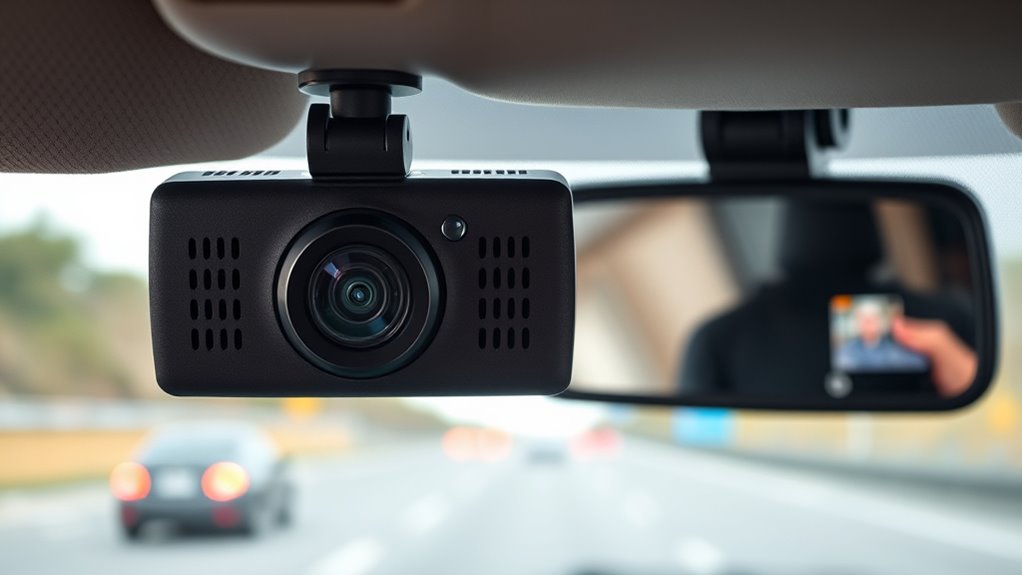
When your dash cam suddenly stops recording, several common issues could be to blame. One frequent cause is improper camera placement; if your dash cam isn’t securely mounted or is facing away from the road, it might stop recording unexpectedly. Additionally, weather conditions play a significant role. Extreme heat can cause the device to overheat and shut down, while cold weather might affect internal components, leading to recording issues. Dust, ice, or snow on the camera lens can also obstruct the view, causing recording interruptions or gaps. Make sure your dash cam is properly positioned, clear of obstructions, and protected from harsh weather. Using an appropriate power source, such as a reliable bike generator, can help prevent power-related recording issues and ensure consistent operation. Proper power management is essential for maintaining uninterrupted recordings, especially during long trips or in areas with unstable power supplies. Additionally, keeping your camera firmware up to date can help fix bugs that might cause unexpected shutdowns. Regularly inspecting and cleaning the camera lens can further improve recording reliability. Addressing these factors and ensuring device stability can help ensure consistent recording and prevent random stops.
How to Check Your Dash Cam’s Power Supply
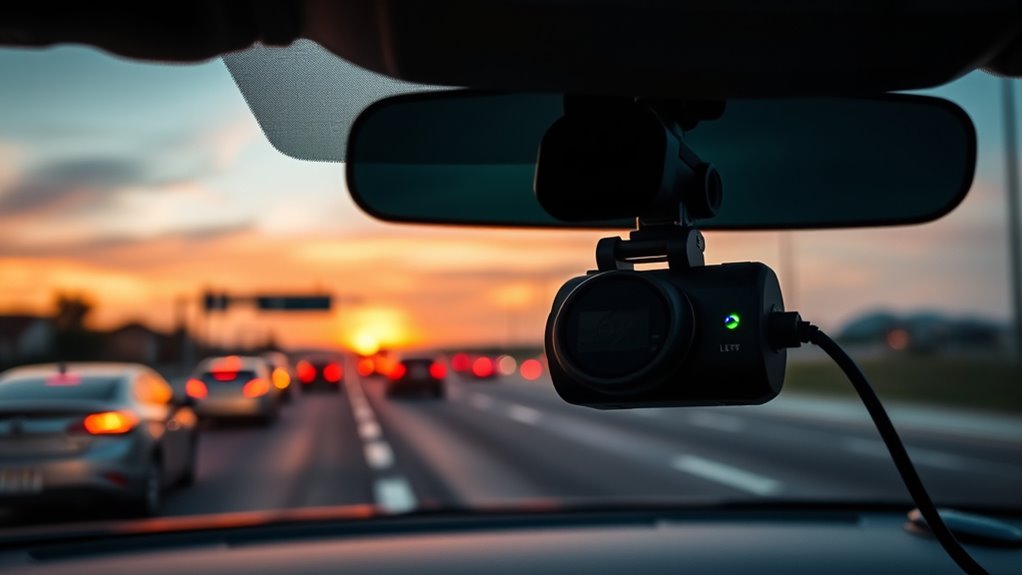
Start by inspecting all your power connections to make certain they’re secure and free of damage. Next, test the voltage levels with a multimeter to confirm your dash cam is getting proper power. Finally, verify that the fuse isn’t blown, as a faulty fuse can cut off power unexpectedly. Ensuring your piercing jewelry materials are appropriate can also prevent electrical issues if your setup involves body modifications with conductive jewelry.
Inspect Power Connections
If your dash cam has stopped recording, the first step is to inspect its power connections. Start by checking the power cable for any visible damage or loose fittings. Confirm the cable is securely plugged into both the dash cam and the power source. Look closely at the connector for signs of corrosion, such as rust or buildup, which can disrupt power flow. Corroded connectors often cause intermittent power issues, leading to random recording stops. If you notice any corrosion, gently clean the connector with a soft cloth or contact cleaner. Make sure the connections are firm and free of debris. A secure and clean connection is essential for consistent power delivery, preventing your dash cam from shutting down unexpectedly. Additionally, verifying the power supply to the device can help ensure that the problem isn’t caused by a faulty outlet or power source. Regularly inspecting and maintaining the power connections can help prevent future recording interruptions. Proper maintenance of the power system is crucial, especially considering how reliable power is vital for continuous device operation, and can also extend the lifespan of your dash cam and improve overall reliability.
Test Voltage Levels
To guarantee your dash cam is receiving proper power, you need to test the voltage levels from the power supply. Use a multimeter to measure the voltage at the power source. A healthy battery ensures consistent voltage stability, preventing interruptions in recording. If the voltage drops below the recommended range, your dash cam may shut off or stop recording randomly. Check the connections to ensure they’re secure and free of corrosion, which can affect voltage flow. Consistently low or fluctuating voltage indicates poor battery health or an unstable power supply, both of which can cause recording issues. Regularly inspecting your power source and maintaining it can help prevent these problems. Monitoring voltage stability with a multimeter allows for early detection of power irregularities. By monitoring voltage levels regularly, you can identify power problems early and address them before they impact your dash cam’s performance.
Verify Fuse Function
Checking the fuse that protects your dash cam’s power supply can reveal if a blown fuse is causing recording issues. To verify fuse function, locate your vehicle’s fuse box and identify the fuse linked to the dash cam’s electrical circuit. Remove the fuse carefully and examine it. A blown fuse often shows a broken or burnt filament, or a discolored appearance. Test the fuse with a multimeter set to continuity mode; if there’s no continuity, the fuse is faulty. Replacing a blown fuse restores the electrical circuit’s integrity, ensuring the dash cam receives proper power. Additionally, understanding fuse ratings can help prevent future issues and ensure compatibility. Using a correct fuse type is crucial for safety and reliable operation. If the fuse remains intact but issues persist, further electrical circuit inspection may be necessary. Checking your fuse function is a simple step that can prevent unexplained recording interruptions and helps maintain proper electrical circuit performance.
The Role of Memory Card Issues
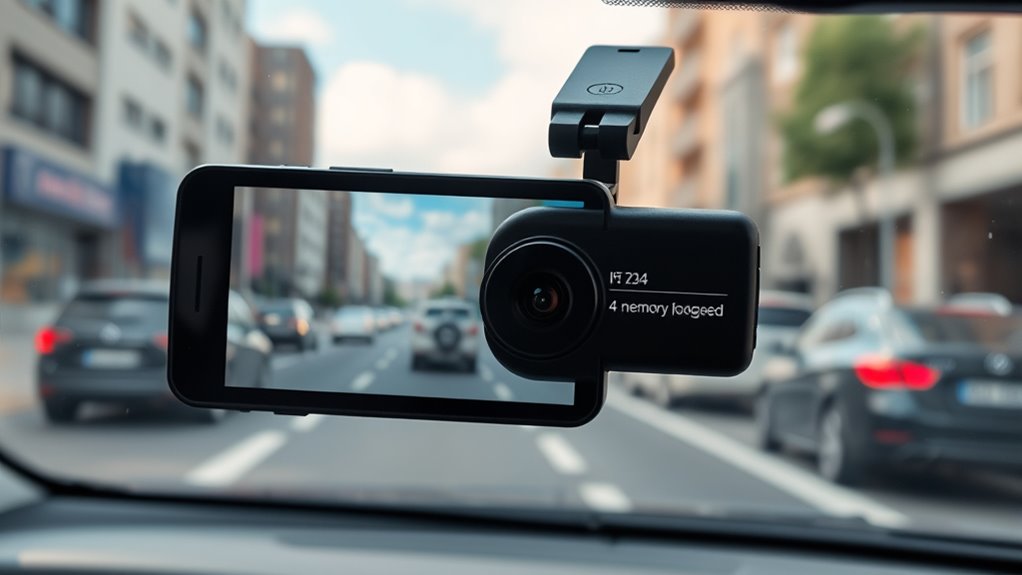
Memory card issues are a common cause of dash cam recording failures. When your memory card becomes corrupted, it can prevent the dash cam from saving footage properly, leading to random stops in recording. Corruption often occurs from improper removal, power interruptions, or incompatible filesystems. Additionally, limited storage capacity can cause recording to halt unexpectedly once the card is full. If your memory card is almost at capacity, the dash cam may stop recording until you free up space or replace the card. Regularly check your storage capacity and format the card correctly to prevent corruption. Using a high-quality, compatible memory card and maintaining enough free space helps guarantee continuous recording and reduces the chances of unexpected stops. Proper maintenance of your memory card can significantly extend its lifespan and ensure consistent performance. Furthermore, selecting a reliable memory card designed for dash cams can help prevent many common issues related to corruption and compatibility. To further protect your recordings, consider using a write-protect feature if available, which can prevent accidental data loss. Being aware of memory card specifications can also contribute to choosing the best option for your device and avoiding issues related to incompatibility.
Firmware and Software Troubleshooting
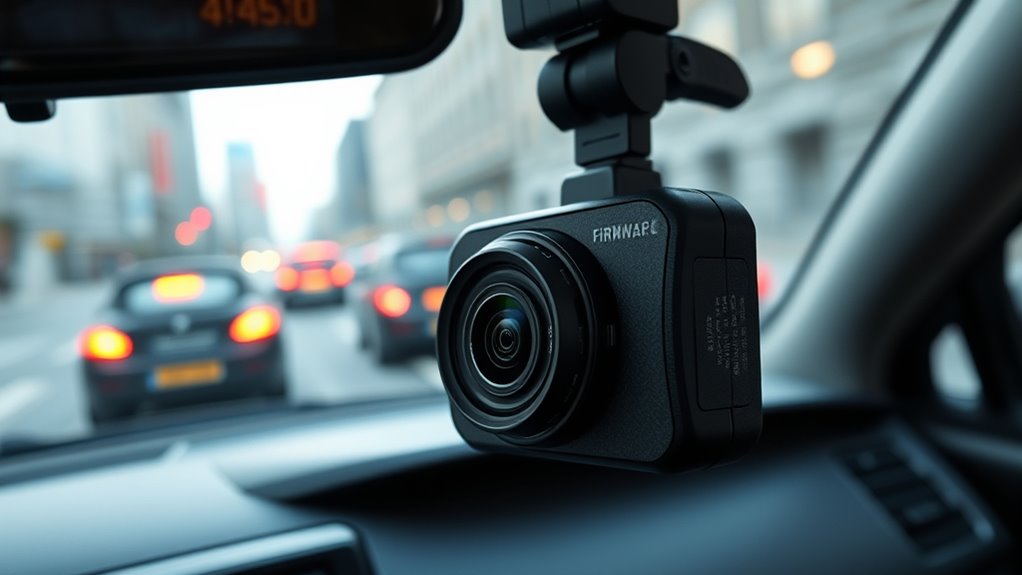
Keeping your dash cam’s firmware updated is essential for ideal performance and avoiding recording issues. Always check that your software is compatible with your device before making updates or reinstalling. If problems persist, try resetting the device to restore its factory settings and troubleshoot software glitches. Additionally, regular updates can help prevent software glitches from disrupting recording functionality. Properly managing firmware updates ensures your device remains reliable and secure.
Firmware Updates Importance
Firmware updates are essential for ensuring your dash cam functions properly and remains compatible with new features or improvements. Regularly updating firmware fixes bugs, enhances stability, and maintains optimal performance. Think of it like upgrading your device’s foundation for better reliability. Imagine your dash cam as a table:
| Old Firmware | New Firmware |
|---|---|
| Compatibility issues | Seamless software compatibility |
| Occasional glitches | Smooth operation |
| Limited features | Access to latest features |
Without updates, your dash cam risks not recording properly or stopping unexpectedly. Keeping firmware current ensures your device communicates well with other software components, reducing errors. Additionally, firmware updates help prevent security vulnerabilities that could compromise your device. Regular updates also help address software bugs that might cause recording interruptions. Staying up-to-date with firmware can also improve device stability and prevent unexpected crashes. Moreover, timely updates can provide compatibility with new hardware accessories or external systems. Remember, firmware updates are a simple but crucial step to keep your dash cam operating at its best.
Software Compatibility Checks
When your dash cam isn’t recording properly, it’s essential to verify that the firmware and software are compatible. Incompatibilities can cause recording issues or random stops. Check that your device firmware matches the latest version recommended by the manufacturer, as outdated firmware can hinder performance. Confirm that the software version you’re using is compatible with your device firmware. Sometimes, updates can introduce bugs or incompatibilities if not properly installed. Regularly performing software compatibility checks can help you identify potential issues before they affect recording. Ensure your software compatibility before troubleshooting further:
- Use official firmware updates from the manufacturer
- Avoid third-party software unless explicitly supported
- Confirm that your app version matches your device model
- Read release notes for compatibility info
- Regularly update both device firmware and software to prevent issues
- Understanding firmware updates can help you recognize signs of compatibility problems and maintain optimal device performance
Resetting the Device
If your dash cam continues to experience recording problems despite verifying compatibility, resetting the device can often resolve underlying issues. This process helps restore proper device calibration and clears software glitches. Follow the reset procedures specific to your model, usually involving holding a button or disconnecting power momentarily. Resetting can refresh your device’s firmware, ensuring smooth operation and reliable recording.
| Issue | Reset Procedure | Outcome |
|---|---|---|
| Random stops recording | Hold reset button for 10 seconds | Restores factory settings |
| Firmware glitch | Power off, then restart after 30 sec | Corrects calibration errors |
| Software freeze | Remove power, wait, then reconnect | Clears temporary bugs |
| Persistent issues | Perform full reset, update firmware | Ensures best device performance |
Tips for Proper Dash Cam Maintenance
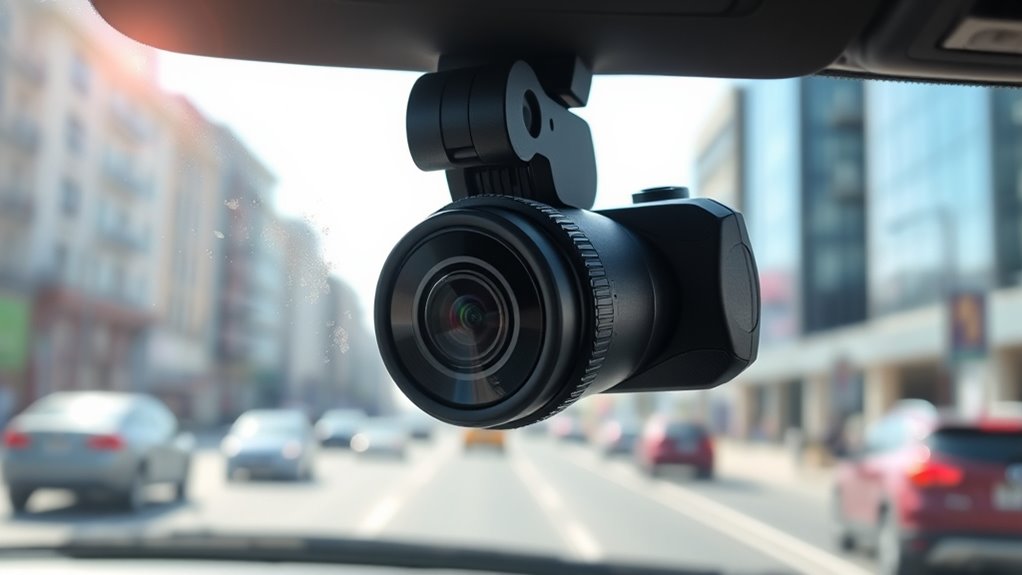
Regularly inspecting and cleaning your dash cam guarantees it stays in good working condition and continues to record properly. Keep an eye on sensor calibration to ensure accurate recordings and avoid blurry footage. Check the mounting stability to prevent vibrations or movement that can disrupt recordings. Clean the lens with a microfiber cloth to maintain clear footage, especially after dirt or dust accumulation. Ensure the power connection is secure and free of corrosion. Test your dash cam periodically to verify it starts and stops recording as needed.
- Inspect the mounting bracket for tightness
- Clean the lens and sensor regularly
- Verify power connections for corrosion or looseness
- Adjust sensor calibration if footage seems off
- Keep the device free of dust and debris
When to Seek Professional Repair or Replacement
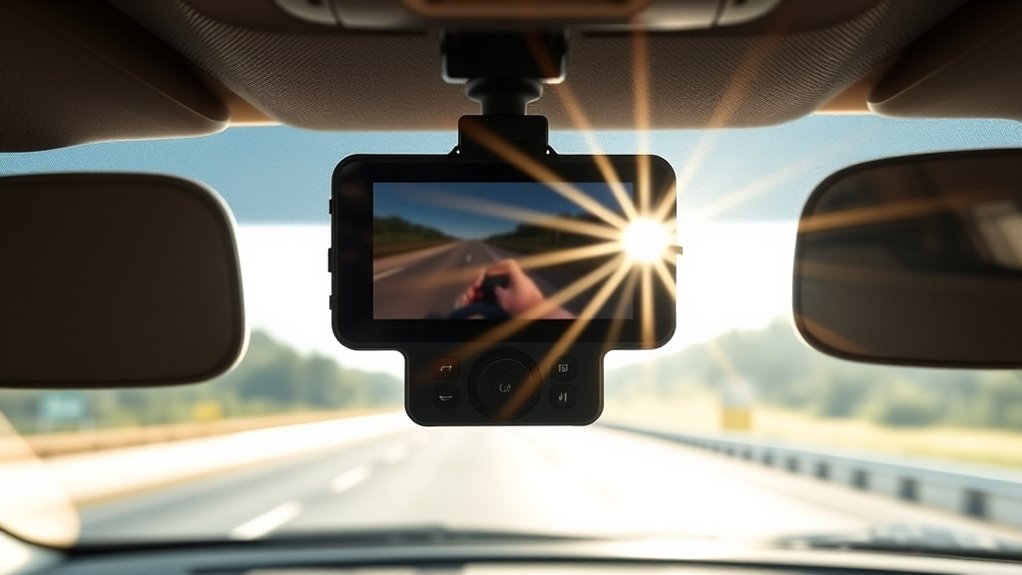
Even with diligent maintenance, there are times when your dash cam might stop recording properly or experience other issues that can’t be rectified through simple cleaning or adjustments. If you’ve reviewed the installation guides and thoroughly read the user manual but still face persistent problems, it’s time to seek professional repair or consider replacement. Signs include persistent recording failures, hardware malfunctions, or error messages that won’t clear. Attempting to fix complex issues yourself can sometimes cause further damage. When troubleshooting doesn’t resolve the problem, consult a qualified technician or contact the manufacturer’s support service. Relying on experts ensures your dash cam is properly diagnosed and repaired, restoring its reliable recording function and keeping you protected on the road.
Preventative Measures to Keep Recording Smooth
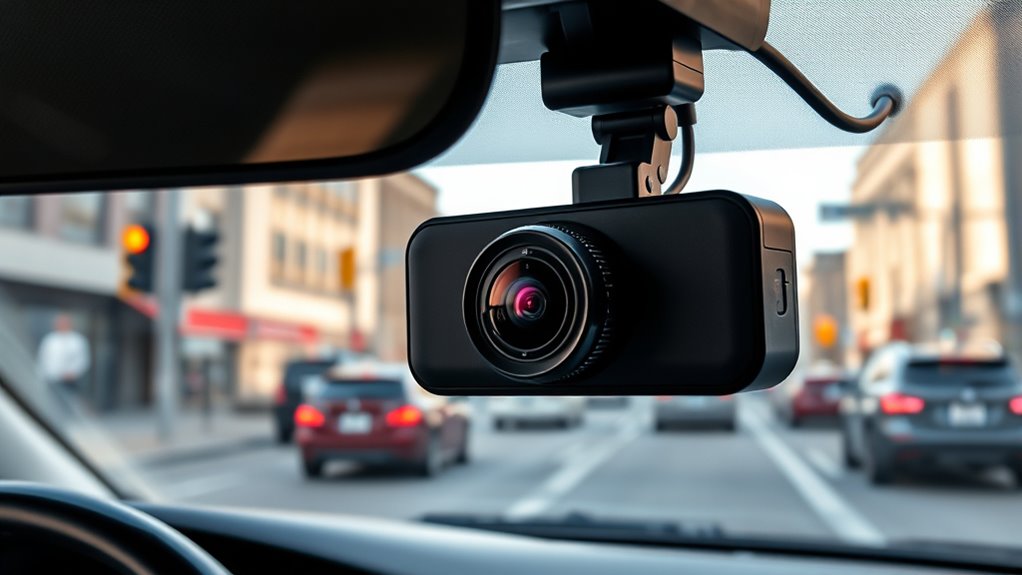
Maintaining your dash cam’s performance requires proactive steps to prevent recording issues before they happen. Regularly check your parking mode settings to confirm it activates correctly when parked, reducing the chance of missed footage. Keep your GPS module clean and update its firmware to improve GPS accuracy, which helps sync recordings with your location. Use a high-quality SD card and format it periodically to prevent corruption and lag. Avoid exposing your dash cam to extreme temperatures, as these can impact hardware performance. Additionally, ensure the camera’s firmware is up to date for peak functionality.
- Enable parking mode properly
- Regularly update GPS firmware
- Use reliable, high-quality SD cards
- Keep the camera’s environment within recommended temperature ranges
- Regularly check and update firmware
Frequently Asked Questions
Can Temperature Fluctuations Cause My Dash Cam to Stop Recording?
Yes, temperature fluctuations can cause your dash cam to stop recording. When it gets too hot, the camera may overheat, leading to system shutdowns to prevent damage. Cold temperatures can cause storage errors, making the device unable to save footage properly. To avoid these issues, make certain your dash cam is installed in a shaded area and check that the device is rated for extreme temperatures.
Does Parking Mode Affect Normal Recording Functions?
Parking mode generally doesn’t affect your normal recording functions when you’re driving. It activates when your car is parked, using motion detection or impact sensors to record incidents. However, if parking mode is enabled, it might temporarily pause or limit normal recording to conserve power or storage. Make sure your dash cam settings are correctly configured so that parking mode works seamlessly without interrupting your regular recording when you’re on the move.
How Long Does a Typical Dash Cam’s Battery Last?
A typical dash cam’s battery lasts around 1 to 2 years, depending on usage and quality. To maximize its battery lifespan, you should use proper power management settings, like parking mode and automatic shutoff. Regularly check the battery’s condition, and avoid leaving the dash cam on unnecessarily. Good power management helps prevent the battery from draining quickly, ensuring your dash cam stays reliable for longer periods.
Are There Specific Brands More Prone to Recording Issues?
Like a fragile glass slipping from your grasp, some brands are more prone to recording issues. You should prioritize brands with strong reliability and good product reviews. Cheaper or lesser-known brands often lack the durability needed for consistent recording, leading to random stops. Stick to trusted names, read reviews carefully, and you’ll avoid the frustration of a dash cam that suddenly stops capturing your journey.
Can External Vibrations Damage or Affect Dash Cam Performance?
External vibrations and shocks can definitely impact your dash cam’s performance. Vibration impact from rough roads or external shocks can loosen connections, damage internal components, or cause recording interruptions. To protect your device, secure it firmly and avoid bumpy routes when possible. Regularly check for loose wires or mounts, and consider using vibration dampers if you frequently drive on uneven surfaces. Proper setup minimizes the risk of recording issues caused by external vibrations.
Conclusion
Don’t let your dash cam’s silence be a warning siren you ignore. Think of it as a vigilant guardian falling silent at a vital moment—leaving you vulnerable. Regular checks and maintenance keep it humming like a well-oiled engine, ready to record every twist and turn. Stay proactive, troubleshoot issues early, and your dash cam will continue to be your faithful eye on the road, capturing every story before it slips into the shadows.