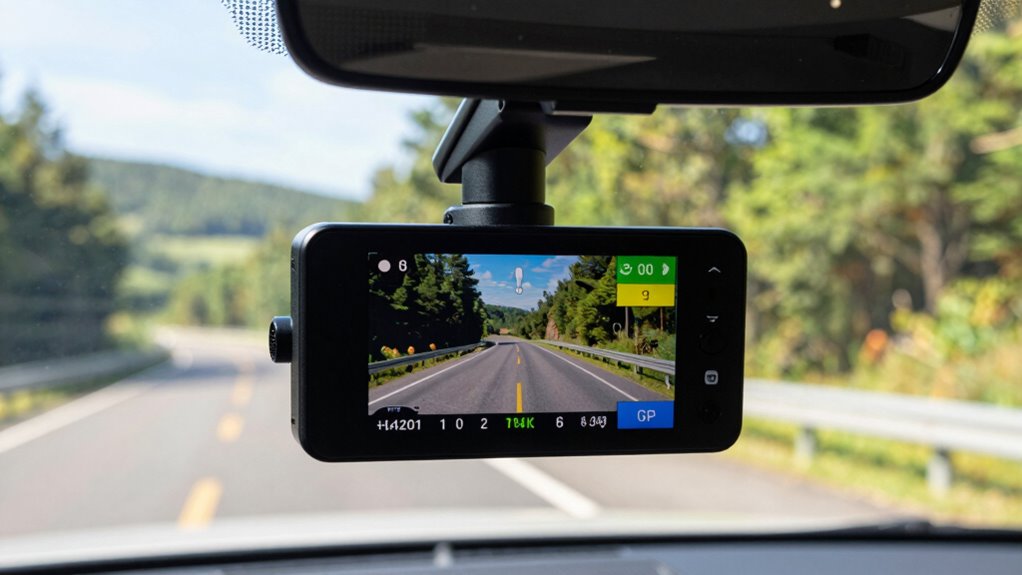

To find GPS coordinates in your dash cam video, look for embedded metadata within the file using tools like hex editors or metadata viewers such as Exiftool. These contain data like latitude, longitude, speed, and timestamps stored in MP4 boxes or custom telemetry formats. Carefully scan the file for GPS patterns or related tags, then extract and convert this info into mapping formats like GPX or KML. Continue exploring to uncover detailed steps and techniques for seamless extraction.
Key Takeaways
- Use specialized software like exiftool or Dashcam Viewer to extract GPS metadata embedded in the video file.
- Locate GPS data in MP4 or MOV containers by analyzing box structures or metadata tracks.
- Search for recognizable GPS patterns such as NMEA strings or custom telemetry markers within the file.
- Convert extracted GPS logs into standard formats like GPX or CSV for easier analysis and visualization.
- Synchronize GPS timestamps with video frames for accurate mapping of location data over time.
Understanding Embedded GPS Data in Dash Cam Videos
To understand embedded GPS data in dash cam videos, you need to recognize how these devices store location information within their files. Dash cams embed GPS metadata like latitude, longitude, altitude, timestamp, speed, and bearing directly into the video files or save them separately. This data can be stored in standard formats such as EXIF or QuickTime atoms within MP4 or MOV containers, or in vendor-specific private atoms. Some dash cams also generate sidecar files like GPX or CSV logs, which record detailed GPS points. Advanced models may embed additional motion data from IMUs or gyroscopes, providing richer context for the vehicle’s movement. Recognizing these formats and storage methods is essential for extracting accurate GPS coordinates from your dash cam videos. Knowing how to identify and extract these embedded data formats is crucial for accurate GIS integration. Additionally, understanding the file structure of these video formats can aid in locating embedded GPS information efficiently. Familiarity with the metadata standards used by various dash cam manufacturers can significantly streamline the extraction process. Furthermore, tools designed for video metadata extraction can facilitate the process of retrieving embedded GPS data more effectively. Being aware of common software tools that support these formats can also help simplify the extraction process. Moreover, standardized data formats ensure compatibility across different devices and platforms, making data extraction more straightforward.
Identifying GPS Metadata in MP4 Files With Hex Editors
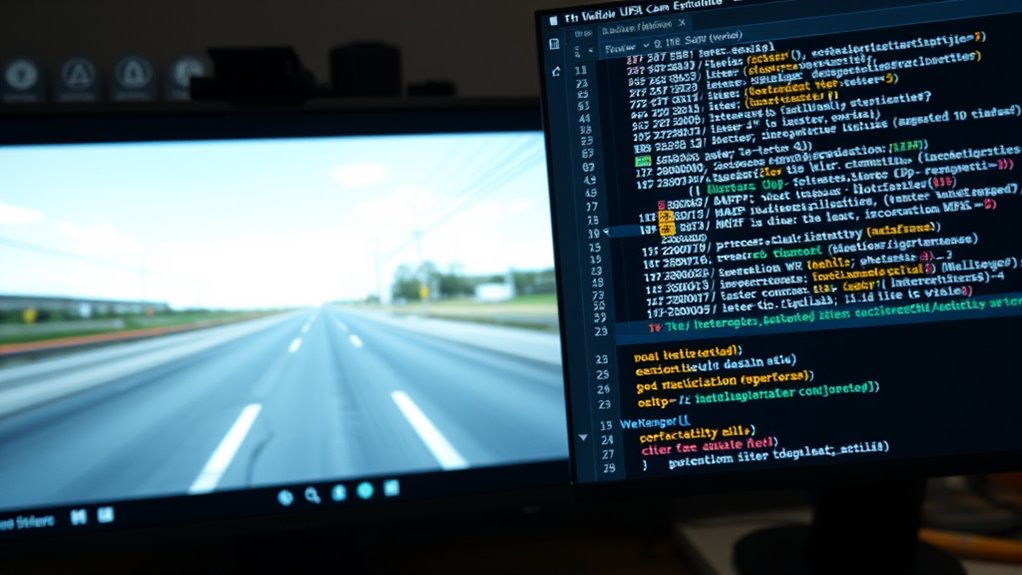
When analyzing MP4 files for GPS metadata using a hex editor, you need to identify specific box structures that store telemetry data. MP4 files are built from nested boxes with 4-byte size headers and 4-byte type identifiers, such as “trak,” “mdia,” or “gpmd.” GPS data is often stored in dedicated metadata tracks, represented by these boxes, which contain sample tables linking file offsets to telemetry samples. Custom telemetry formats like GPMF use recognizable FourCCs (e.g., “GPSF,” “GPS5”) and follow a Key‑Length‑Value pattern. To locate GPS metadata, scan for these ASCII strings, then examine the surrounding headers and sample tables (stco, stsz, stsc). By understanding the box hierarchy and offsets, you can pinpoint and interpret GPS coordinates embedded within the MP4 container. Understanding metadata structures enhances your ability to accurately find and decode embedded GPS data. Recognizing metadata storage patterns helps streamline the extraction process and improves accuracy when decoding GPS information. Additionally, familiarity with common metadata formats allows for more efficient identification of telemetry data within diverse file structures. Being aware of file structure conventions further aids in navigating complex MP4 containers to locate specific telemetry data. Developing skills in box hierarchy analysis can significantly improve your efficiency in extracting relevant metadata from complex MP4 files.
Locating Speed and Coordinates in Video Metadata
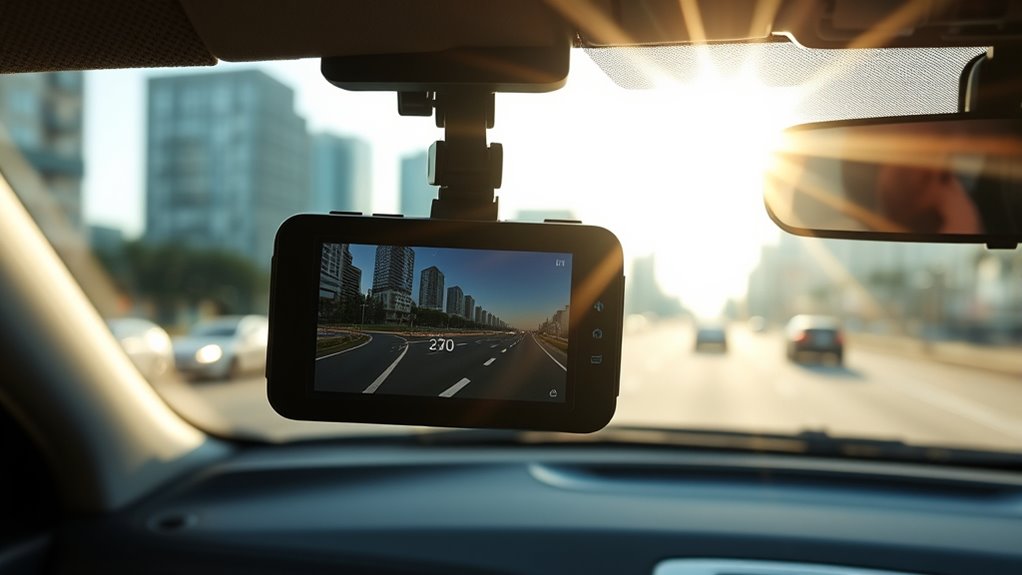
Locating speed and coordinates within video metadata involves examining the embedded timed metadata tracks that store GNSS information rather than relying on visual overlays. Many MP4 or MOV files contain GPS data in dedicated sections like timed-metadata or user-data atoms, which can be parsed using tools like exiftool or specialized extractors. These tracks often include latitude, longitude, altitude, speed, and timestamps, sometimes with vendor-specific tags or standard GPST-like formats. Speed information typically appears as fields labeled “GPS Speed” or similar, often in km/h or m/s, with accompanying unit flags. Extracted data can be merged across multiple files into continuous tracks, and software like exiftool can produce GPX files, enabling detailed analysis without re-encoding. Advanced parsing techniques can further improve extraction accuracy when dealing with complex or proprietary metadata structures. Additionally, understanding the metadata structure can help in identifying and extracting additional relevant data such as heading or accuracy metrics. Recognizing the accuracy metrics included in metadata can also be crucial for precise location tracking. Furthermore, some metadata may include timestamp information that helps synchronize GPS data with video frames for more accurate spatial analysis. Analyzing the body of metadata carefully can reveal hidden details that are essential for comprehensive GPS data extraction and interpretation. Being familiar with the GPS data formats can assist in interpreting the extracted data correctly and ensuring reliable results.
Extracting GPS Data Using Hex Editor Techniques

To start extracting GPS data with a hex editor, you’ll need to locate the relevant metadata tags within the video file. Next, identify the data sections that contain coordinate information, often requiring careful decoding of multi-byte sequences. Additionally, understanding the format of Free Floating data can help in accurately interpreting the extracted information. Recognizing the metadata structure in the file can significantly aid in pinpointing the GPS coordinates more efficiently. Familiarity with data encoding techniques used in video files can further streamline the extraction process. A good understanding of file formats can also assist in navigating complex data arrangements. Being aware of data organization principles can make it easier to interpret the raw data correctly. Finally, you can import this extracted data into mapping tools to visualize the GPS path. Additionally, using specialized software that supports GPS data extraction can streamline this process and improve accuracy.
Locating GPS Metadata Tags
Ever wonder how to find GPS metadata within your dash cam videos using a hex editor? Start by searching for the “GPS” string in the hex view—this often reveals embedded data sections in MP4 or MOV files. Expand your search 10 bytes before and after “GPS” to locate message clusters containing timestamps and coordinates. For Novatek cameras, look for the “gps ” box within the “moov” metadata. In MOV files, GPS Latitude and Longitude are stored in the RVMI box at specific indexes, while GPVTG tags, indicating speed, are positioned before the “K” marker. Using these patterns, you can identify key GPS metadata tags and prepare for extraction, ensuring you accurately locate latitude, longitude, speed, and other relevant data points within your dash cam files. Understanding the file structure can significantly streamline your data recovery process, especially when you are aware of how metadata tags are organized within different video formats.
Extracting Data Sections
Extracting GPS data from dash cam videos with a hex editor involves inspecting the binary file directly to find and isolate the relevant information. You’ll need to identify and extract specific data sections containing GPS metadata. Here’s what to focus on:
- Locate the file headers, usually a few hundred bytes at the beginning, to access initial metadata.
- Search for GPS-related patterns, such as NMEA-like strings or GNSS markers within the binary.
- Isolate GPS data segments by selecting and copying the identified data blocks.
- Paste these sections into a new file or extract them for further processing.
Importing for Mapping
Importing GPS data into mapping software becomes straightforward once you’ve manually extracted the relevant segments using a hex editor. You start by opening your MP4 file in a hex editor like HxD, inspecting offsets, and locating GPS data blocks. You can copy headers from known good files to fix corruption or use tools like Roadkil’s Disk Imager or ISO Buster to identify embedded GPS data. Adding GPS records at the file’s end guarantees compatibility. Once extracted, save the data as a GPX file. You can then import this file directly into mapping tools, visualizing your trip with full routes, timestamps, and speeds. Using hex editor techniques allows precise control, especially when automated tools struggle, giving you a reliable way to map your dash cam recordings accurately. Additionally, understanding file structure and data encoding methods enhances your ability to accurately locate and extract GPS information from video files. Recognizing patterns in the data format can significantly streamline the extraction process. Developing a knowledge of data patterns helps distinguish GPS data from other embedded information, making manual extraction more efficient.
Importing GPS Coordinates Into Mapping Tools and Software
Once you’ve extracted your GPS coordinates, the next step is importing them into mapping tools for visualization. Exporting your data in formats like GPX makes it compatible with most software, allowing you to see your route alongside video playback. Properly visualized GPS data helps you analyze your trip accurately and share your journey easily. Compatibility with various software ensures you can seamlessly integrate your GPS data without technical issues.
Exporting to GPX Format
To make use of GPS data from your dash cam videos, you need to convert the raw coordinates into a widely compatible format like GPX. This guarantees seamless import into mapping tools and software. You can achieve this through various methods:
- Use Python scripts like `nvtk_mp42gpx` for extracting GPS from MP4 files, supporting batch processing and broad video compatibility. These scripts are capable of parsing proprietary GPS data formats and converting them into standard GPX files.
- Employ Exiftool commands to extract embedded GPS metadata directly from videos, especially in directory batches.
- Convert TXT files with GPS logs by adjusting timestamps and units, then formatting them into GPX.
- Leverage commercial tools like Telemetry Extractor, which consolidate multiple videos into a single GPX file, supporting various camera brands and adding computed data like bearing and slope.
Visualizing GPS Data
After converting your GPS data into a compatible format like GPX or CSV, the next step is visualizing it on mapping tools and software. You’ll want to confirm that coordinate notation matches your tool’s requirements, such as decimal degrees or degrees-minutes-seconds, and guarantee precision (5–7 decimal places) for accuracy. Adding a timestamp column in ISO 8601 allows synchronization with video frames for animation or filtering. Standardize column headers and use UTF-8 encoding to prevent parsing errors. Optional fields like altitude, heading, and speed enrich your visualization and enable time-based analysis. You can import CSV files into web mappers like Map Maker or desktop GIS programs like QGIS. These tools support overlays, spatial queries, and animations, helping you interpret your dash cam GPS data effectively. Ensuring compatibility with your chosen software’s coordinate and data formats improves the accuracy and efficiency of your visualization process. Additionally, verifying the coordinate system used ensures your data aligns correctly with the geographic context.
Using Specialized Software to Export GPS Data From Videos
Using specialized software to export GPS data from videos allows you to extract precise location and movement information embedded within dash cam footage. To do this effectively, you should consider:
Extract accurate GPS data from dash cam videos with specialized software for seamless analysis.
- Choosing software compatible with your dash cam model, such as Dashcam Viewer or telemetry extractors like GoPro Telemetry Extractor.
- Exporting data in formats like GPX, KML, or CSV, suitable for mapping, analysis, or forensic review.
- Parsing embedded telemetry or using OCR techniques to reconstruct GPS coordinates when raw data isn’t available. Implementing accurate data extraction methods ensures the integrity of your GPS information.
- Merging multiple video files and syncing timestamps to create continuous, accurate GPS tracks.
- Ensuring your chosen tools support data integration to streamline the process of combining GPS information from various sources. Additionally, verifying that your software supports wave and wind data can improve the accuracy of environmental context in your analysis.
These methods guarantee you obtain reliable location data, even when native telemetry is limited or absent, streamlining your analysis process.
Connecting Dash Cam Devices for Real-Time GPS Overlay

Connecting your dash cam device for real-time GPS overlay allows you to view live location, speed, and route data directly on the footage as you drive. Many built-in GPS dash cams log vehicle coordinates and speed simultaneously with video, eliminating the need for external wiring or extra space. Models like DRIVEYE D9 sync with apps such as Viidure, enabling route viewing and GPS-tagged clip downloads. Wireless options like Chigee connect via Bluetooth or Wi-Fi for instant overlay playback, while Garmin displays current speed and coordinates at the bottom of the video. Smartphone compatibility through Wi-Fi or CarPlay/Android Auto offers flexible, on-the-go GPS access. Enable the GPS feature before recording, then connect your device to the app to view live data overlays seamlessly during your drive. GPS data enhances the credibility of evidence by providing precise location and speed information in real time.
Synchronizing GPS Data With Video Footage for Accurate Mapping
You need to align your GPS data with your video footage to guarantee accurate mapping. This involves choosing the right timestamp alignment methods and synchronization techniques to match the data sources precisely. Addressing common discrepancies, like time zone differences or clock drift, is essential for reliable results. The GPS feature in dashcams detects vehicle’s geographical position via satellite signals and records real-time speed along with video footage, which can be used to improve synchronization accuracy.
Timestamp Alignment Techniques
Aligning GPS data with dash cam footage requires precise timestamp synchronization to guarantee accurate mapping. To achieve this, follow these techniques:
- Measure the constant clock offset by comparing at least three identifiable events (brake lights, horn, vehicle positions) and compute an average time shift.
- Correct for variable clock drift by sampling offsets over time, fitting a linear or higher-order model, and applying a time-warp transform.
- Adjust for DST or timezone mismatches by verifying the dash cam’s timezone against GPS UTC timestamps, then convert all data to a single reference.
- Convert video timestamps to exact frame indices using precise frame rates and account for rounding and frame quantization to avoid sub-second errors.
Most dash cameras lack automatic DST adjustment, so manual synchronization is essential. These steps ensure accurate synchronization, enabling reliable spatial mapping from dash cam videos.
GPS and Video Synchronization Methods
To guarantee GPS data accurately matches dash cam footage, employing effective synchronization methods is essential. Hardware-level techniques include using dash cams with built-in GPS modules that embed position and time into video metadata, ensuring precise alignment. Multi-camera systems sharing a common timebase, like CAN or Ethernet AVB, keep all frames synchronized. External GNSS receivers with PPS output discipline camera clocks for sub-second accuracy, especially when external time input is supported. Choose cameras that record GPS data in standardized formats such as GPX or KML, along with metadata like fix quality and UTC timestamps, to facilitate reliable parsing. These methods help maintain consistent, accurate mapping by aligning GPS data directly with video frames, minimizing post-processing errors and improving overall synchronization fidelity. Using GPS data embedded in video files ensures seamless integration of location information with footage, enhancing the reliability of event reconstruction and analysis.
Troubleshooting Sync Discrepancies
When GPS data doesn’t match your dash cam footage, identifying and resolving synchronization issues becomes essential for accurate mapping. To fix discrepancies, start by verifying that your dashcam’s internal clock is correctly set to the right timezone and time, ensuring alignment with GPS data. Next, confirm that all devices—GPS, computer, and dashcam—share identical time settings to prevent playback errors. If using Miofive dashcams, ensure the time sync is active via GPS or manually adjusted through the mobile app. Finally, check your TS files; even if not closed properly, they can help with partial recovery. Regular firmware updates, like Viofo v2.02, also fix timestamp issues. Proper synchronization guarantees your GPS coordinates accurately overlay your video footage for reliable mapping. Good GPS signal is critical for maintaining accurate timestamps and ensuring that your video footage aligns correctly with the GPS data.
Troubleshooting Missing or Inaccurate GPS Data
Missing or inaccurate GPS data can be frustrating, but many issues stem from simple software or hardware problems that are easy to fix. First, guarantee GPS and data stamping are enabled in your dashcam settings, and verify the speed displays correctly. Set the internal clock to the right timezone and synchronize timestamps across your GPS, computer, and dashcam. If GPS data is missing, check the following:
| Issue | Solution |
|---|---|
| Software configuration | Verify GPS settings, clear cache, reload videos from GPS-active periods |
| Signal interference | Remove windshield tint, check antenna placement, use signal booster |
| Hardware connection | Secure cables, confirm vehicle gateway connections, test antenna |
Tips for Ensuring Consistent GPS Data Capture During Recording
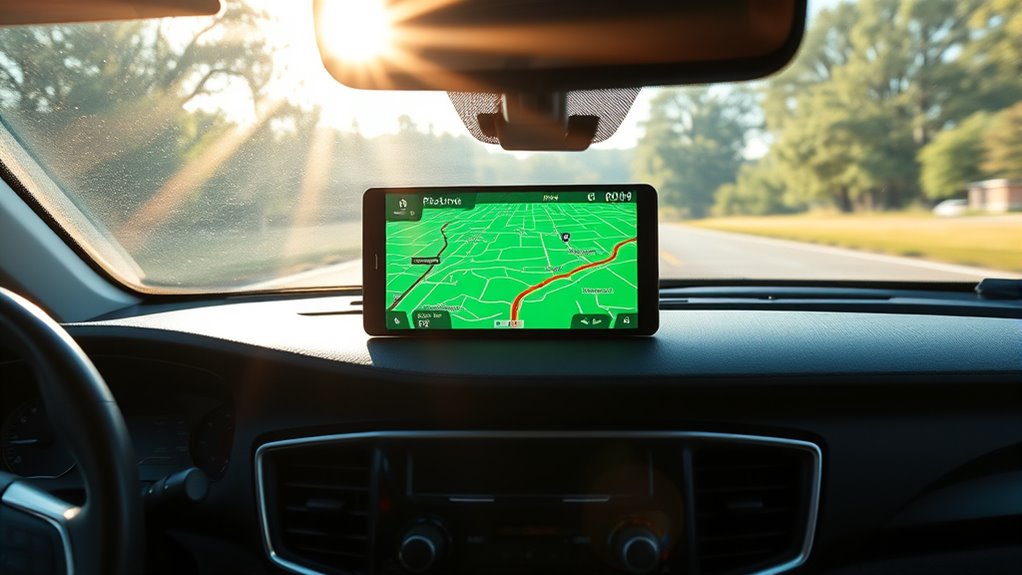
Ensuring consistent GPS data capture during recording requires careful attention to camera placement, mounting stability, and operational settings. Proper placement guarantees strong satellite signals, while a secure mount prevents shifts that can break the GPS antenna’s line-of-sight. Follow these tips:
Secure your camera with proper placement and stable mounting for reliable GPS data during recordings.
- Mount your camera high on the windshield behind the rearview mirror to reduce multipath and maximize sky view.
- Use stable mounting methods like adhesive or threaded mounts to prevent vibrations and rotation.
- Avoid metal obstructions and tint near the GPS antenna that can weaken signals.
- Enable GPS overlay, timestamps, and keep firmware updated for reliable data embedding and system stability. Regularly checking GPS signal strength can help identify issues early. Implementing these practices helps maintain consistent, accurate GPS data during recording sessions.
Frequently Asked Questions
Can I Extract GPS Data From Any Dash Cam Video?
Yes, you can extract GPS data from many dash cam videos, but it depends on the device. Some models embed GPS metadata directly, making extraction straightforward with specialized tools. Others may only store static data or require external loggers. You’ll need to verify your dash cam’s capabilities and use appropriate extraction tools like GPS visualizers, OCR extractors, or telemetry software to retrieve and analyze the GPS coordinates effectively.
What File Formats Are Compatible for GPS Data Extraction?
You can extract GPS data from MP4, MOV, and GPX files. MP4 files embed GPS info using $GPRMC sentences, while MOV files store metadata like latitude, longitude, and altitude. GPX files, generated from videos, provide GPS tracks for mapping. Additionally, NMEA and other formats like NNN.NMEA or NNN.gps are compatible. Use tools like ExifTool or Garmin Dash Cam Player to extract and analyze GPS data from these formats.
Is It Possible to Recover Lost or Corrupted GPS Data?
Yes, you can recover lost or corrupted GPS data from your dash cam. First, stop recording immediately to prevent further damage. Use data recovery software like EaseUS or Recuva to scan and retrieve deleted files. If the GPS data is corrupted, try repair tools such as VLC or Wondershare Repairit. Always back up your data regularly and keep your memory cards in good condition to minimize future loss.
How Accurate Is GPS Data Extracted From Videos?
Sure, your GPS data from videos is as reliable as a weather forecast—roughly 5 to 10 meters in open sky, but forget pinpoint accuracy. Urban canyons, tunnels, and signal blockages turn it into a game of hide-and-seek. Expect occasional jumps and errors, especially in dense environments. For basic route mapping and speed tracking, it’s decent; for precise lane-level details, you’ll need higher-end gear.
Do I Need Special Software or Hardware to Read GPS Coordinates?
You don’t need special hardware to read GPS coordinates from dash cam videos because the data is embedded in the files. Most dash cams include GPS modules and store data within MP4 or TS files. You can access this info using manufacturer apps, free software like Dashcam Viewer, or extraction tools like GPS Visualizer. Just connect your SD card or use the device’s interface to retrieve and analyze the GPS data easily.
Conclusion
Think of your dash cam as a compass guiding you through your journey. By understanding and extracting GPS data, you’re revealing the map hidden within each video—your personal atlas waiting to be explored. With patience and the right tools, you’ll turn raw coordinates into meaningful stories. Let each data point be a star in your navigation sky, guiding you confidently forward, transforming ordinary footage into a voyage of discovery.