

If your firmware update fails, don’t try multiple updates at once or ignore your device’s power and battery status. Avoid restarting your device, disconnecting abruptly, or using unofficial files. Don’t skip backups or ignore update indicators and logs. Refrain from attempting repairs without proper diagnostics. Taking these steps now can prevent further damage—stick with proven methods, and you’ll find out more about how to recover safely.
Key Takeaways
- Do not disconnect the device abruptly or power it off during the update process.
- Avoid using unverified or corrupted firmware files to prevent further damage.
- Refrain from attempting multiple reboots or retries without diagnosing the root cause.
- Do not ignore warning messages or logs indicating update failures or issues.
- Avoid updating over unstable Wi-Fi connections; prefer wired or stable networks to ensure integrity.
Do Not Attempt Multiple Updates Simultaneously
Attempting to update multiple devices at the same time considerably increases the risk of firmware corruption. When you perform concurrent write operations, the chances of write collisions and incomplete firmware images rise, leaving devices unbootable. Simultaneous updates also strain your network, making packet loss or interruptions affect several devices at once, which raises failure rates. If devices share the same update server or CDN, overloads can cause partial downloads and damaged installs. For devices with flash memory needing erase-before-write, simultaneous updates heighten the risk of incomplete sequences, increasing bricking incidents. Empirical data shows batch failures lead to higher correlated outages, which can cause widespread service disruptions. To avoid these risks, always update devices sequentially, giving each process time to complete properly. Additionally, network congestion can further impede update success rates, so managing your network traffic during updates is essential. Proper update scheduling helps ensure each device receives the necessary bandwidth and attention for a successful firmware installation. Moreover, understanding the firmware update process can help you better plan and troubleshoot potential issues, especially when considering the recovery options available if an update fails. Being aware of the update protocol can also assist in preventing errors during the process and facilitate smoother recovery if problems occur.
Avoid Ignoring Power Status and Battery Levels
You need to make sure your device has stable power and enough battery charge before starting a firmware update. Relying on low batteries or an unstable power source can cause interruptions that brick your device. Always confirm the power status and charge levels to prevent costly failures. Proper power management is essential during the update process to ensure a smooth and successful upgrade. Additionally, understanding the importance of battery health can help you avoid unexpected shutdowns during critical updates. Ensuring power stability minimizes the risk of errors and device failures. Maintaining consistent power supply during updates is crucial to prevent potential damage or unsuccessful installations. Being aware of Energy Savings & Comfort and their relation to device performance can also guide you in making informed decisions about your investments and avoid unnecessary risks.
Prevent Power Interruptions
Ignoring power status and battery levels during firmware updates can lead to costly failures; therefore, it’s essential to verify that the device has stable power and adequate backup before starting. To prevent power interruptions, consider these steps: 1. Confirm there are no scheduled utility outages or grid issues by checking outage alerts, weather warnings, or ongoing maintenance plans. 2. Use an appropriately sized UPS, and ensure its battery health and runtime are recent and reliable, especially for critical systems. 3. Avoid updating devices with active power alarms, recent power fluctuations, or pending hardware repairs, as these conditions increase the risk of bricking the device during the update. Regularly monitoring the device’s power source and status can help detect potential issues early, preventing unexpected shutdowns. Power stability is crucial for successful firmware updates. Staying vigilant about power stability guarantees your firmware update completes smoothly and avoids costly setbacks. Additionally, power management practices are vital for maintaining consistent device performance during updates. Moreover, ensuring that the device’s battery level is sufficiently charged before starting the update can prevent unexpected shutdowns. Implementing device health monitoring can provide early warnings and help maintain overall system reliability during firmware procedures.
Ensure Adequate Battery Level
Ensuring your device has an adequate battery level before starting a firmware update is crucial to prevent failures and potential bricking. Many manufacturers set a minimum charge threshold—often between 20% and 50%—that must be met before updates can begin. If your device is on battery, it usually won’t allow the update unless it’s charging or connected to AC power. Ignoring these warnings risks power loss mid-flash, which can corrupt firmware and render your device unbootable. Some systems permit overrides, but doing so can void warranties or hinder support. To stay safe, verify your battery percentage meets or exceeds the recommended minimum before starting. If needed, connect your device to power and ensure it’s fully charged to avoid interruptions during the process. Always check official guidelines before proceeding with firmware updates. Additionally, understanding the power management system of your device can help prevent unexpected shutdowns during critical updates. Being aware of your device’s battery health status can further aid in preventing update failures. Regularly monitoring your battery capacity can help anticipate potential issues during updates and improve overall device longevity. Maintaining a stable power source during updates is vital for the success of the process. Also, paying attention to the cultural significance of your device’s design might inspire a more mindful approach to maintenance and updates, ensuring your device remains in optimal condition for years to come.
Do Not Restart Devices During Firmware Installation
You should never restart your device during a firmware update, as it can corrupt the firmware and make your device unusable. Interrupting the process risks bricking the device, causing it to become stuck in boot loops or completely inoperable. Always wait for the update to finish before turning off or restarting your device to avoid these costly issues. Firmware updates are critical operations that require uninterrupted execution to ensure proper installation and functionality. Additionally, understanding the importance of proper update procedures can help prevent user errors that lead to device malfunction, especially since proper procedures ensure the integrity of the firmware during installation. Following best practices during updates minimizes the risk of problems and maintains device stability. Furthermore, patience during the update process is vital because interruptions can compromise the entire system. Being aware of the risks of improper updates reinforces the need for careful adherence to recommended procedures to safeguard your device’s performance.
Risks of Interrupting Firmware
Interrupting a firmware update by restarting or disconnecting your device can cause serious problems. When you do this, you risk corrupting critical memory components, which can prevent your device from booting properly or require costly recovery. Here are key dangers:
- Power or connection drops during the update can leave memory in an indeterminate state, making recovery difficult. Firmware components are sensitive to power interruptions.
- Interrupting write processes may leave flash memory sectors unusable or partially written, causing silent failures.
- Disrupting verification steps like signatures or checksums can leave devices running unverified or tampered firmware, risking security breaches.
- Additionally, such interruptions can sometimes trigger hardware malfunctions that are difficult to repair without professional assistance.
- Understanding the importance of proper update procedures helps prevent irreversible damage and ensures device security.
Rebooting prematurely increases the chance of bricking your device, forcing complex recovery procedures. Always wait for the update to complete fully before powering down or disconnecting. Following proper procedures ensures device integrity and security.
Potential Device Bricking Risks
During firmware installation, restarting your device can cause irreversible damage, especially if it occurs during critical stages like bootloader flashing or partition switching. Interrupting these processes can corrupt essential components, leaving your device unresponsive or bricked. Avoid restarting during signature verification or integrity checks, as partial verification can cause the device to reject valid firmware. Power-cycling during recovery image writing or metadata updates can also prevent proper booting, sometimes making recovery impossible. Additionally, interrupting flash or EEPROM writes risks corrupting data blocks, leading to permanent device failure. Environmental factors, like power loss or low battery, further increase bricking risks if the device restarts mid-update. To prevent these issues, never restart your device until the update completes successfully, and always ensure stable power and environment. Understanding the importance of firmware integrity helps prevent accidental device bricking. Recognizing the critical stages during updates can help users identify when to be especially cautious to avoid failures. Moreover, being aware of proper update procedures can significantly reduce the likelihood of encountering these issues. Always follow manufacturer instructions to maintain device stability during updates.
Refrain From Using Unofficial or Corrupted Files
Using unofficial or corrupted firmware files substantially increases the risk of compromising your device’s security and stability. You could inadvertently introduce malware or backdoors from untrusted sources, making your device vulnerable. Additionally, unofficial images may be incompatible with your hardware, causing boot failures or erratic behavior. To avoid these pitfalls, keep these points in mind:
- Always source firmware from verified vendor channels or trusted OTA services.
- Validate files with cryptographic hashes or digital signatures before flashing.
- Use staged rollouts and factory-tested images to catch corruption early.
- Remember that software update processes rely on the integrity of the files used, making careful verification essential for preventing failures.
Skipping these steps can lead to device bricking, security breaches, or system instability. Relying on official, verified files is vital to ensure a safe and smooth update process.
Do Not Disconnect Your Device Abruptly During the Process

You should never disconnect your device suddenly during a firmware update, as it risks corrupting the firmware or bricking the device. Interrupting the process can cause incomplete writes, leading to boot failures or the need for complex recovery. Staying patient and ensuring the process completes helps protect your device’s functionality and data. Firmware compatibility issues can also arise if the update is interrupted, making recovery even more difficult.
Risk of Firmware Corruption
Interrupting a firmware update abruptly can cause serious corruption, as the process relies on continuous power and data transfer. When you disconnect your device suddenly, you risk incomplete code writes, leaving the firmware unstable or corrupted. Here’s what can happen:
- Power surges or loss during updates can stop the process mid-way, corrupting the firmware.
- System crashes or electrical fluctuations can cause partial writes, leaving the device in an unusable state.
- Insecure communication channels or malware insertions during updates can embed malicious code, further risking corruption.
- Firmware integrity checks are bypassed when updates are interrupted, increasing the likelihood of undetected corruption.
Any interruption prevents the verification processes from completing, which means the firmware may no longer function correctly or safely. Always keep your device powered and connected throughout the update to avoid these risks.
Device Bricking Consequences
When a device is abruptly disconnected during a firmware update, it can become unresponsive or get stuck in a boot loop, making it impossible to operate normally. This incomplete installation often corrupts critical files, causing boot failures and leaving the device in a stuck state. In severe cases, the device becomes completely non-functional, a condition known as hard bricking, which typically requires replacement rather than repair. Hardware or software damage from such interruptions prevents reflashing and can disable recovery options. You may face ongoing data loss, system crashes, and persistent instability. While soft bricks can sometimes be recovered through ROM reflashing, hard bricks rarely do, and in those cases, recovery becomes impossible without professional intervention or device replacement. Repeated update failures have been linked to hardware/software issues caused by interrupted updates, increasing user frustration and device obsolescence.
Interrupts Update Process
During a firmware update, disconnecting your device abruptly can cause severe hardware and software issues. First, it can interrupt flash writing, leaving your firmware partially written and preventing the device from booting. Second, if erase operations are interrupted, critical sectors like the bootloader may be lost, making recovery difficult. Third, power loss during writing can cause bit flips or corrupted flash sectors, requiring complex reprogramming or hardware replacement. Additionally, peripherals such as storage or radios might end up in inconsistent states, leading to hardware faults. Software-wise, incomplete updates can cause checksum failures, boot loops, or system crashes. Recovery often demands specialized tools and skills, which aren’t always available. To avoid these problems, always verify the update completes fully without interruptions. Properly following update procedures is essential to maintain device integrity and avoid costly repairs.
Avoid Relying Solely on Wi-Fi in Unstable Networks
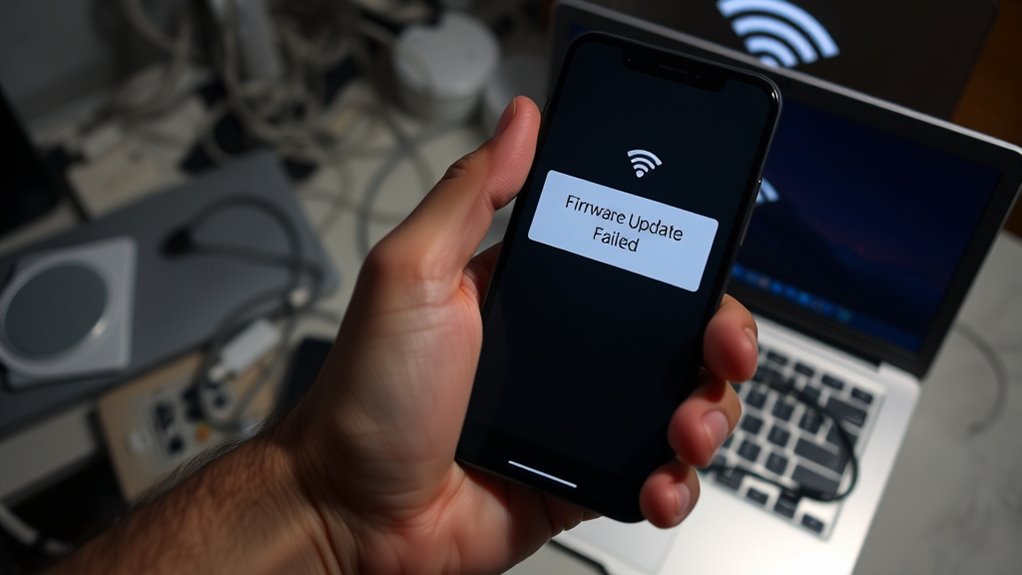
Relying solely on Wi-Fi for firmware updates can lead to failures if your network experiences packet loss or high jitter. Packet loss above a few percent increases the risk of corrupted or incomplete transfers, potentially bricking your device. High jitter causes latency spikes that disrupt streaming firmware packets, interrupting the update process. Before attempting an update, run a stability test; non-zero packet loss or jitter over 20–30 ms signals elevated risk. If Wi-Fi shows instability, switch to a wired Ethernet connection, which offers lower packet loss and jitter by avoiding interference and congestion. In multi-device environments or during peak usage, delays and packet drops become more likely. Using wired links or out-of-band methods minimizes these issues, ensuring smoother, more reliable firmware updates. Maintaining network stability is crucial to prevent update failures.
Do Not Overlook Firmware Compatibility and Version Checks

Ensuring firmware compatibility and verifying version integrity are essential steps before initiating updates. Skipping this step risks mismatched firmware and OS, causing crashes, battery drain, or security gaps. To avoid trouble, consider these crucial checks:
Always verify firmware compatibility and version integrity before updates to ensure device stability and security.
- Confirm that your device’s firmware version aligns with the current OS to prevent performance issues.
- Verify hardware communication protocols like Bluetooth and Wi-Fi match the firmware specifications to avoid connection failures.
- Use cryptographic signatures and standards like FIPS 140-3 to ensure update authenticity and prevent malicious replacements.
- Regularly monitor firmware version updates to stay informed about new releases and security patches that could impact compatibility.
Neglecting these checks can lead to vulnerabilities, incompatibilities, and costly rework. Proper version control and compatibility verification keep your device stable, secure, and performing optimally after every update. Don’t overlook these vital steps.
Refrain From Skipping Backup of Device Settings

Backing up your device settings before a firmware update is a critical step that shouldn’t be overlooked, as it safeguards against data loss and configuration issues. Skipping this step risks losing essential device-specific information like calibrations, security parameters, and network configurations that aren’t automatically restored. Creating full image backups, configuration exports, or off-device copies ensures you can quickly recover if the update fails or corrupts data. Verify your backups’ integrity through test restores or checksums to confirm they’re usable. Document where backups are stored and what they include, so recovery is straightforward. Automate backups where possible, and retain multiple versions before each update. Proper backups align with organizational policies, protect sensitive data through encryption, and provide essential recovery points, minimizing operational downtime.
Do Not Attempt to Fix the Issue Without Proper Diagnostics
Attempting to fix firmware update issues without proper diagnostics can cause more harm than good. Without verifying the problem, you risk worsening the situation or bricking the device entirely. To avoid this, consider these steps:
- Check device-specific diagnostics, such as BIOS version commands or web interface tests, to confirm the update failed or caused issues.
- Review logs and indicators—like CLI outputs or system reports—to understand what went wrong.
- Verify the integrity of firmware files and ensure compatibility before retrying, avoiding corrupt or incompatible updates.
- Proper diagnostic procedures ensure that you accurately identify the root cause of the failure and prevent unnecessary risks during troubleshooting.
Skipping these diagnostics can lead to corrupt files, hardware stress, or silent failures that worsen the problem. Always gather data first; rushing in blind can turn a fix into a catastrophe.
Avoid Ignoring Firmware Update Indicators and Logs
Ignoring firmware update indicators and logs can lead to overlooked failures that escalate into serious hardware issues. You should verify progress bars, percentage counters, and status messages at every stage, capturing logs immediately when an update starts. Cross-check device UI indicators with host-side tools to spot mismatches that signal problems. Pay attention to pauses, stalls, or repeated status messages, as these often warn of impending failure. Always preserve update artifacts like firmware checksum, version, and tool info to trace issues back to specific builds. Don’t dismiss cryptographic warnings or power interruptions; treat them as crucial. Review logs thoroughly for errors or checksum failures, correlating across system layers. Retain error messages and diagnostics, as they’re essential for effective troubleshooting and support. Ignoring these indicators hampers your ability to recover efficiently. Additionally, the firmware update process itself is sensitive to environmental factors like power stability and hardware health, so ensure your system environment is stable throughout the update.
Frequently Asked Questions
Can I Manually Force My Device to Restart During a Failed Firmware Update?
You shouldn’t manually force your device to restart during a failed firmware update. Doing so can cause data corruption, incomplete installations, or even brick your device, making it unresponsive. If your device becomes unresponsive, try a graceful reboot first. If that doesn’t work, only perform a forced restart as a last resort, and be aware of the risks involved. Always back up your data before attempting any recovery steps.
Is It Safe to Try Re-Updating the Firmware Immediately After a Failure?
You shouldn’t try re-updating the firmware immediately after a failure. Doing so can cause boot loops, partial failures, or even brick your device. Instead, first restart your device to see if it resolves the issue. If that doesn’t work, verify firmware compatibility, guarantee sufficient storage, and consider rolling back to a stable version. If problems persist, contact manufacturer support before attempting another update.
Should I Use Third-Party Tools to Recover a Bricked Device?
Using third-party tools on a bricked device is like trying to repair a delicate watch with a hammer—you risk causing more damage. Unless you’re experienced and know the tool’s support for your device’s firmware, avoid it. Instead, create a full read-only image first. If necessary, consult professional repair services. Missteps here can turn a fixable problem into permanent data loss or hardware damage.
What Are the Risks of Unplugging My Device During a Firmware Update?
Unplugging your device during a firmware update risks bricking it, making it completely inoperable. This interruption can cause system corruption, permanent hardware damage, or boot failures. You might also introduce security vulnerabilities or system bugs. If you disconnect the power or USB cable mid-update, you’ll likely need professional repair or replacement. To avoid these risks, always guarantee your device has a stable power source and don’t interrupt the update process.
How Can I Tell if the Firmware File I Downloaded Is Genuine and Safe?
You can tell if the firmware file is genuine by verifying its digital signature with the vendor’s trusted public key embedded in your device. Also, check that the hash matches the one published by the vendor on their official site, and ascertain the download came from a secure, trusted channel over HTTPS. Confirm the file structure and metadata align with vendor specifications, and avoid files from unverified or third-party sources.
Conclusion
So, next time your firmware update throws a tantrum, remember, ignoring the basics won’t turn your device into a paperweight—well, maybe just a very expensive paperweight. Don’t rush, don’t disconnect, and definitely don’t use sketchy files. Follow the rules, stay calm, and avoid turning your device into a modern art sculpture. After all, troubleshooting isn’t a game of “hot potato”—unless you enjoy restarting your device for the hundredth time.